



Mini PC for Home Office: Is It Worth Switching from a Laptop?
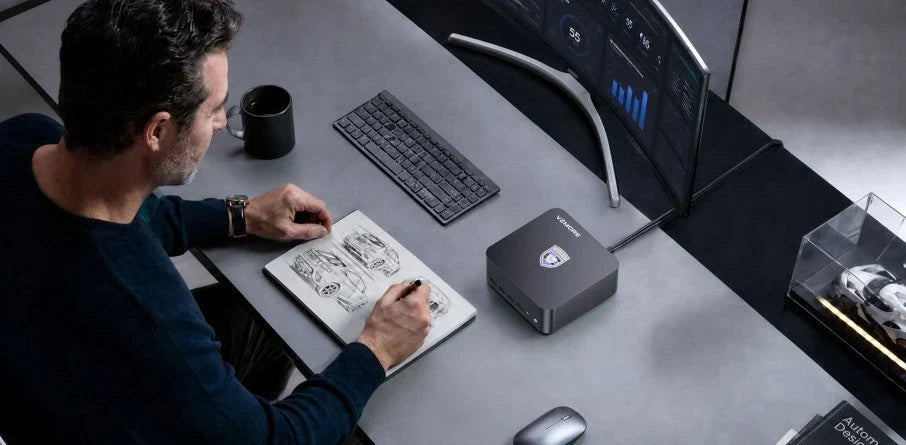
Working from home is now part of everyday life for many people in the UK. According to the Office for National Statistics, more than a quarter (28%) of working adults in Great Britain were hybrid working in early 2025. When the shift first began, many people simply opened up their work laptop on the kitchen table. Over the long term, however, the limitations become clear: a screen that’s too small, too few ports and noticeable heat under load. This is where the mini PC comes in: a fully fledged desktop computer in a pocket-sized format. But is it really worth making the switch?
Key Takeaways
• Who should switch: anyone with a permanent workspace who values ergonomics, large screens and consistent performance.
• The biggest advantages: desktop performance in a compact format, quiet operation throughout the day, native support for multiple high-resolution monitors, and a tidy desk thanks to VESA mounting.
• When a laptop is still the better choice: if your place of work changes daily, you travel frequently for business, or you need the flexibility to work without an external monitor.
What Is a Mini PC, and Why Is It Suited to Working from Home?
A mini PC is a fully fledged desktop computer whose components are housed in a case that’s often barely bigger than the palm of your hand. Unlike a laptop, it’s designed to run continuously on mains power at a fixed workstation, rather than for mobile use on battery.
In a home office, this type of device combines a tidy desk with the performance of a desktop computer. A traditional tower case takes up space under or on the desk, whereas a mini PC blends in unobtrusively. At the same time, all the ports you need for a webcam, keyboard, mouse, document camera or external speakers are right there, with no adapters required.
Mini PC vs. Laptop for Working from Home: The Key Differences
By design, laptops are built for temporary, mobile use. But when a laptop is used every day for months on end as a stationary workstation, physical and ergonomic drawbacks start to emerge. The table below summarises the key differences:
|
Criterion |
Mini PC |
Laptop |
|
Ergonomics & screen |
Large monitors can be positioned freely at eye level, which is easier on your neck and eyes. |
The built-in screen often forces you to tilt your head down, unless you use an external set-up. |
|
Sustained performance |
Consistent performance throughout the working day, as no battery-saving mode kicks in. |
Prone to throttling under sustained load on mains power, and the battery wears out faster. |
|
Cable management |
Can disappear completely behind the monitor, with cables hidden from view. |
Takes up desk space, and cables are usually visible. |
|
Noise & thermals |
Larger cooling surfaces allow quiet operation, even under load. |
The compact design requires small, fast-spinning fans that become audible under load. |
|
Flexibility & mobility |
A stationary system for the office that needs external peripherals, but offers maximum consistency. |
Suitable for working on the go, thanks to its battery, touchpad and screen. |
The Advantages of a Mini PC for Working from Home
More Performance for Everyday Work
Demanding software, large spreadsheets, back-to-back video calls and lots of open browser tabs all put a strain on your computer. A good mini PC handles all of this without stuttering, because it isn’t designed to conserve battery: the processor can tap into its full performance reserves at any time. Programs launch faster, large files can be processed without delay, and switching between multiple applications stays smooth.
Quiet, Unobtrusive Operation
A quiet environment is important for focused work and professional video calls. Fan noise, which kicks in on many laptops even under moderate load, becomes distracting over time. That’s why thermal design plays a bigger role in mini PCs. In an independent chassis test, a current mini PC model with an AMD Ryzen AI 9 HX 470 stayed below 43 dB(A) under sustained load (80 watts peak power), with a case temperature of around 36 °C on the top. By comparison, many laptop fans reach significantly higher noise levels even during short bursts of load. If you’d like to dig deeper, you’ll find more in our in-depth articles on the causes of fan noise and on the difference between vapour chamber and heat pipe cooling.
Using Multiple Monitors at Once
Working on two or more screens has been shown to boost productivity. Laptops often reach their limits when connecting several 4K monitors, or require an additional docking station. Modern mini PCs, by contrast, come with several up-to-date video outputs as standard, so you can set up a multi-monitor workstation without any extra hardware, for example with your main application on one screen and reference documents or chat tools on the other.
Space-Saving VESA Mounting
A tidy desk helps you focus. The VESA compatibility of many mini PCs is a practical advantage here: using a mounting plate, the device can be attached directly to the back of a compatible monitor or to a desk mount. This keeps your desk clear, and cables can be bundled together and routed behind the screen.
When a Laptop Is Still the Better Choice
Whatever the advantages, your purchase should suit the way you work. If you regularly move between your home office, the office, a co-working space and client meetings, you need a device with a built-in battery, screen and input devices, so a laptop remains the obvious choice. And if you like to work on a whim from the garden or the kitchen table, a laptop makes you less reliant on a plug socket and an external monitor. For a permanent home workspace, however, the stationary option comes out ahead on most counts.
What to Look for When Buying a Mini PC for Working from Home
To make sure your new purchase can comfortably meet the demands of your working day for years to come, it’s worth running through a structured checklist of requirements before you buy:
• Performance headroom for multitasking: up-to-date processor technology and enough RAM to keep future software updates running smoothly.
• A wide range of ports: enough video outputs for the monitors you want, plus USB ports for your keyboard, mouse, headset and external drives.
• Network connectivity: fast Wi-Fi and Gigabit Ethernet for stable uploads and video conferencing.
• Cooling design: a well-thought-out thermal architecture keeps the device quiet even under full load and prevents performance throttling.
• Build quality: a robust, precisely manufactured case for a long service life in daily use.
Making the Switch: Practical Tips for Your Set-Up
Switching from a laptop to a mini PC is straightforward and can be done in just a few steps:
1. Decide on the ideal display set-up: Choose either a large ultrawide monitor or a dual-monitor set-up. Pay attention to ergonomics, so that the top edge of the screens is at eye level.
2. Use a VESA mount: Screw the mini PC directly to the back of your monitor using the VESA plate supplied, so your desk space is kept completely clear.
3. Organise your cable management: Use short cables along with cable sleeves or Velcro ties. Bundle all the cables together and run them down along the monitor arms.
4. Add ergonomic peripherals: Invest in a high-quality keyboard that’s kind to your wrists and a precise mouse, so you can make the most of the health benefits of a fixed workstation.
FAQs
Is a mini PC a good choice for working from home?
Yes. It offers the computing power, range of ports and system stability of a traditional desktop computer, while taking up hardly any space and fitting discreetly into your home office.
Can a mini PC completely replace a laptop?
For a stationary home office, a mini PC clearly outperforms a laptop in terms of ergonomics, monitor connectivity and sustained performance. For working on the go, however, you’ll still need a laptop.
How many monitors can a mini PC support?
Depending on the model, two to four high-resolution 4K screens at the same time, usually without any additional adapters or graphics docks.
Is a mini PC quieter than a laptop?
In most cases, yes. The larger case offers more room for heatsinks and bigger fans, so they can run noticeably more quietly, even under sustained load, than the small, fast-spinning fans in a laptop.
Does a mini PC overheat when running all day?
Not if it has a well-designed cooling system. The operating temperature stays within a safe range even after hours of continuous use, so there’s no heat-related throttling. When buying, look out for independent test reports on case temperature.
How much does a good mini PC for working from home cost?
That depends on how much performance you need. For daily professional use, it’s usually worth choosing a model with solid build quality and a quiet cooling system that will run reliably for years. Cheap entry-level models often cut corners in exactly these areas.
Conclusion: Does It Make Sense to Switch from a Laptop to a Mini PC?
If you do your day-to-day work from a fixed workstation at home and don’t want to compromise on ergonomics, screen size, noise or sustained performance, switching from a laptop to a mini PC is an extremely worthwhile investment. You’ll free up valuable desk space, benefit from whisper-quiet operation and lay the foundations for a highly productive working environment. Explore the wide range of first-class VZMORE mini PCs to find the model that perfectly matches your professional needs.

VZMORE is a leading manufacturer of AI Mini PCs. Our systems combine whisper-quiet VC cooling, high performance, and intelligent AI processing power—tailored for demanding applications in home offices, creative workflows, and edge computing. Enjoy free shipping on all orders.
Related Articles
Subscribe to Newsletter
Get the latest news, product updates, and exclusive offers delivered straight to your inbox.