




Mini PC for Video Transcoding: Performance, Workflow, and What to Consider
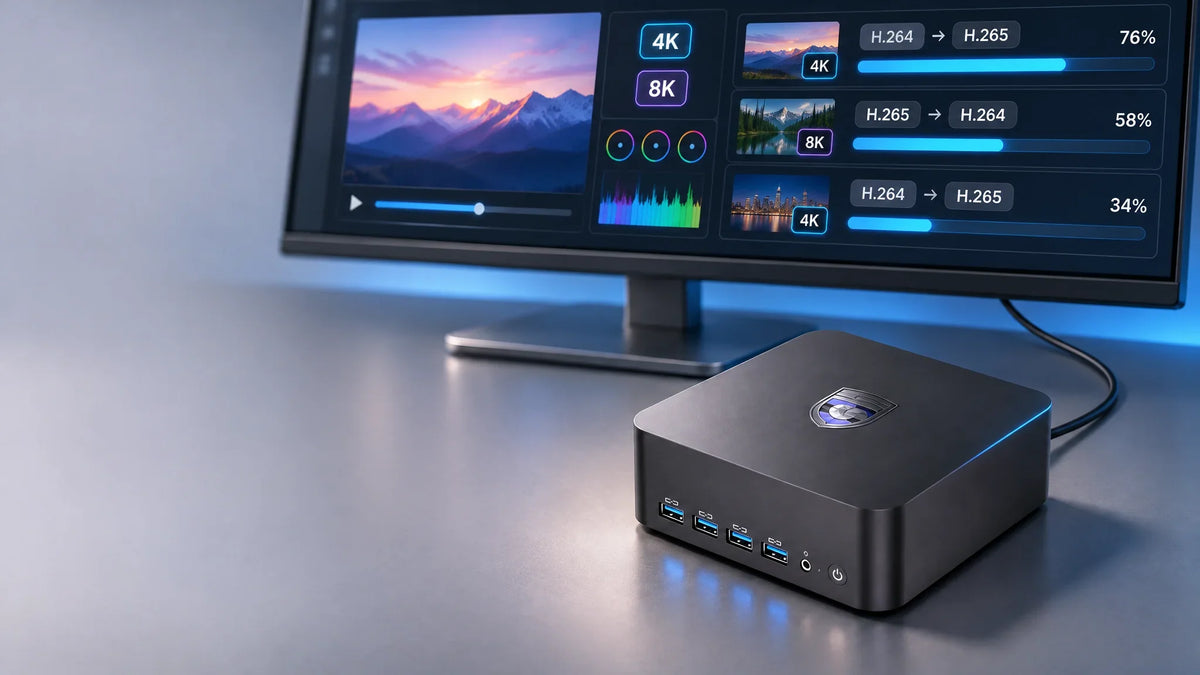
Whether you’re running a Plex or Jellyfin server, or bulk converting files, video transcoding can be quite demanding, especially with 4K or HDR video or multiple streams. As a result, having the right hardware in your computer matters.
However, you don’t need a bulky and power-hungry tower to do the job, and in fact, many modern mini PCs contain processors, graphics, and other hardware that are fully capable of transcoding videos.
This guide goes over everything you need to know about using a mini PC for video transcoding, such as what hardware matters the most, what different workloads require, and more.
What Is Video Transcoding, and When Do You Need It?
Video transcoding is the process of converting a video file from one format to another.
The transcoding process begins by decoding the file back into its raw data format, then modifying the raw data as needed (such as changing the resolution, bitrate, or frame rate), and then compressing the file into a target codec and packing it into a new container format for delivery.
Generally, video transcoding comes in handy when you need to shrink large video files to save storage space, ensure a video can play on multiple devices, and make sure videos can play and load quickly without buffering. It’s also useful for adapting videos to varying internet speeds and for converting clips into editing-friendly formats for smoother editing and less lag.
Transcoding vs. Direct Play vs. Remuxing
However, not every video needs to go through video transcoding before being sent to your device. There’s also Direct Play, which is when a media server delivers the file as-is to your device. For this to happen, your player needs to support a file’s container, audio and video codecs, and bitrate.
Some files may also go through remuxing (called Direct Stream in Plex), which is when existing video and audio streams are copied into another container format (such as converting from MKV to MP4), without actually altering the audio or video.
Of the three, Direct Play uses the fewest resources, as the server simply sends the original file to the playback device without changing it at all. Remuxing also has a low server load as the video isn’t re-encoded, while transcoding is the most intensive, as the server needs to decode, process, and re-encode the file before delivery.
Common Video Transcoding Scenarios
Some of the most common scenarios where video transcoding is useful include:
- Media servers: Media servers, such as Plex and Jellyfin, may transcode videos in real-time when a device can’t natively play a file, or when bandwidth is limited.
- Batch conversion: Using tools like HandBrake or FFmpeg to automate the process of converting multiple video files at once, rather than processing each individually.
- Video production: Because editing raw and high-compression files can cause lag, video transcoding can smooth out editing workflows and ensure files are easier for editing software to handle.
- Personal library compression: Shrinking large files to save storage space, while keeping quality loss to a minimum.
Can a Mini PC Handle Video Transcoding?
Yes, thanks to multi-core CPUs and iGPU media engines, many mini PCs can handle video transcoding workloads. That said, a mini PC’s ability to handle video transcoding also varies depending on how demanding a task is.
While most mini PCs are likely capable of occasional 1080p conversion and using High Efficiency Video Coding (HEVC) to make 4K videos easier to store and stream, more intensive tasks like large batch jobs and having multiple concurrent streams may require a heavier setup.
Your video transcoding results will also depend on the codec, the characteristics of the source file, your network, your target settings, and the acceleration path.
What Hardware Matters Most for Video Transcoding?
So what hardware within your mini PC matters the most for video transcoding? Here are a few of the most important factors.
CPU: Software Encoding and Workload Management
Your CPU is important for video transcoding, especially when you use software encoding. It handles software encoding (whether x264, x265, or SVT-AV1) and helps with higher visual quality, better compression efficiency, and dealing with unsupported codecs.
The CPU is also crucial for managing workloads, as it schedules jobs, acts as a fallback when hardware acceleration is unavailable or reaches its limits, and handles filters, audio, subtitles, and other background tasks.
GPU and Hardware Video Engines: The Key to Efficient Transcoding
Your GPU and dedicated hardware video engines, such as Intel Quick Sync and AMD VCN, are often responsible for delivering both fast and efficient video transcoding.
They can decode and encode videos much faster than your CPU can, and also use less power at the same time. In addition to improving performance and efficiency, this frees up your CPU to focus on background tasks, editing, or even gaming.
Video Codecs: H.264, HEVC and AV1
Video codecs also play an important role, as they determine not just how a file is stored and compressed but also how much time and processing power is needed for transcoding.
Some of the most common video codecs you’re likely to run into when using a mini PC for video transcoding are H.264/AVC, H.265/HEVC, and AV1. Each offers different advantages and drawbacks, and here’s a brief table to highlight the differences.
|
Codec |
Main Advantage |
What to Consider |
|---|---|---|
|
H.264/AVC |
A widely supported and older codec that offers great compatibility and support with different devices. Also provides fast encoding and near-universal playback. |
Not as compression-efficient as newer codecs, which may lead to larger files, more storage requirements, and higher bitrates. |
|
H.265/HEVC |
Better compression efficiency (often 25 to 50% bitrate savings), while still achieving a similar quality to H.264/AVC. |
Normally needs more processing power than H.264/AVC, and while modern devices have strong compatibility, support for older devices may vary. |
|
AV1 |
A modern codec that generally offers the smallest files, without hurting quality. Provides around a 20 to 30% lower bitrate than H.265/HEVC. |
Encoding is quite demanding compared to other codecs, and while support is growing, compatibility isn’t as strong as it is with the others. |
Cooling and Sustained Performance
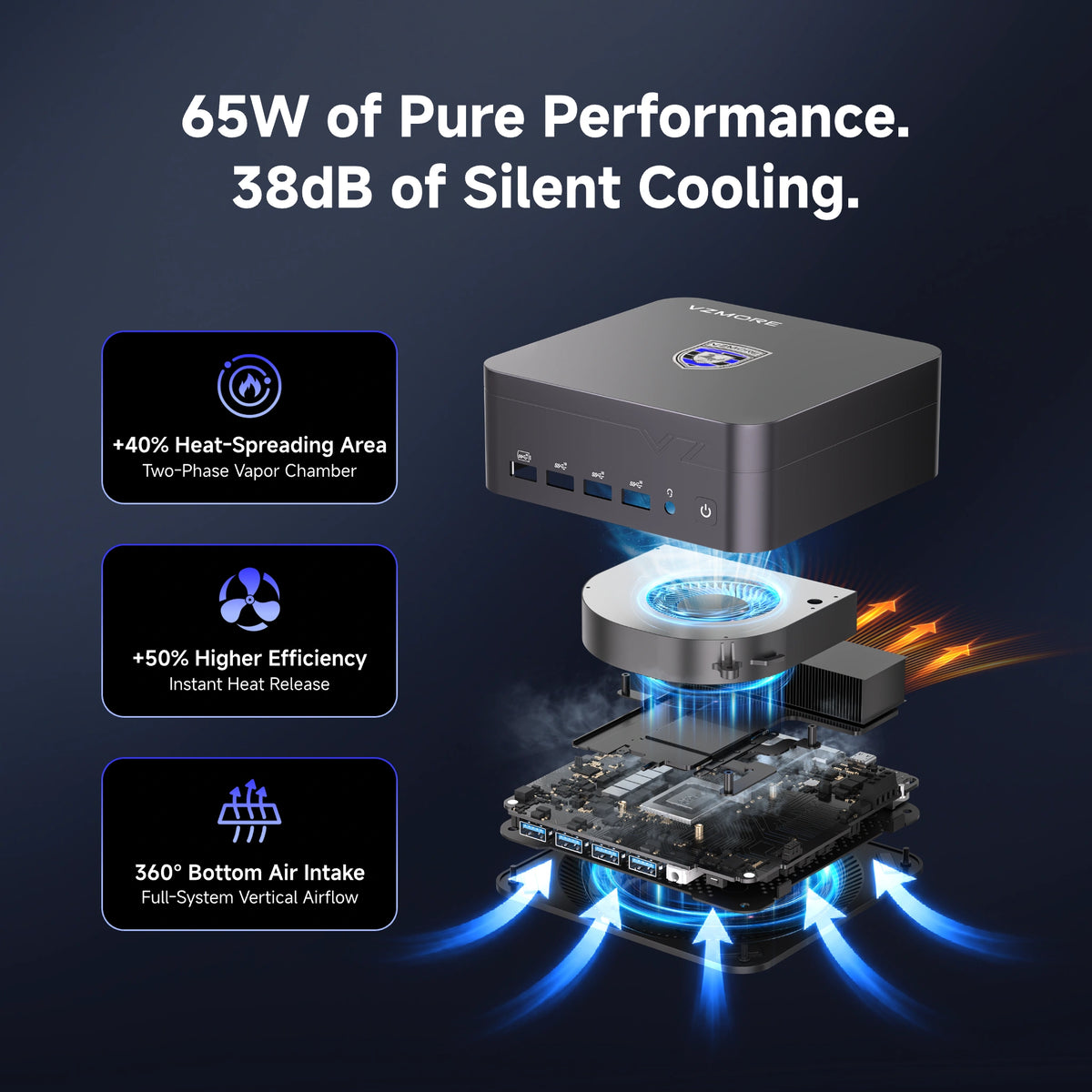
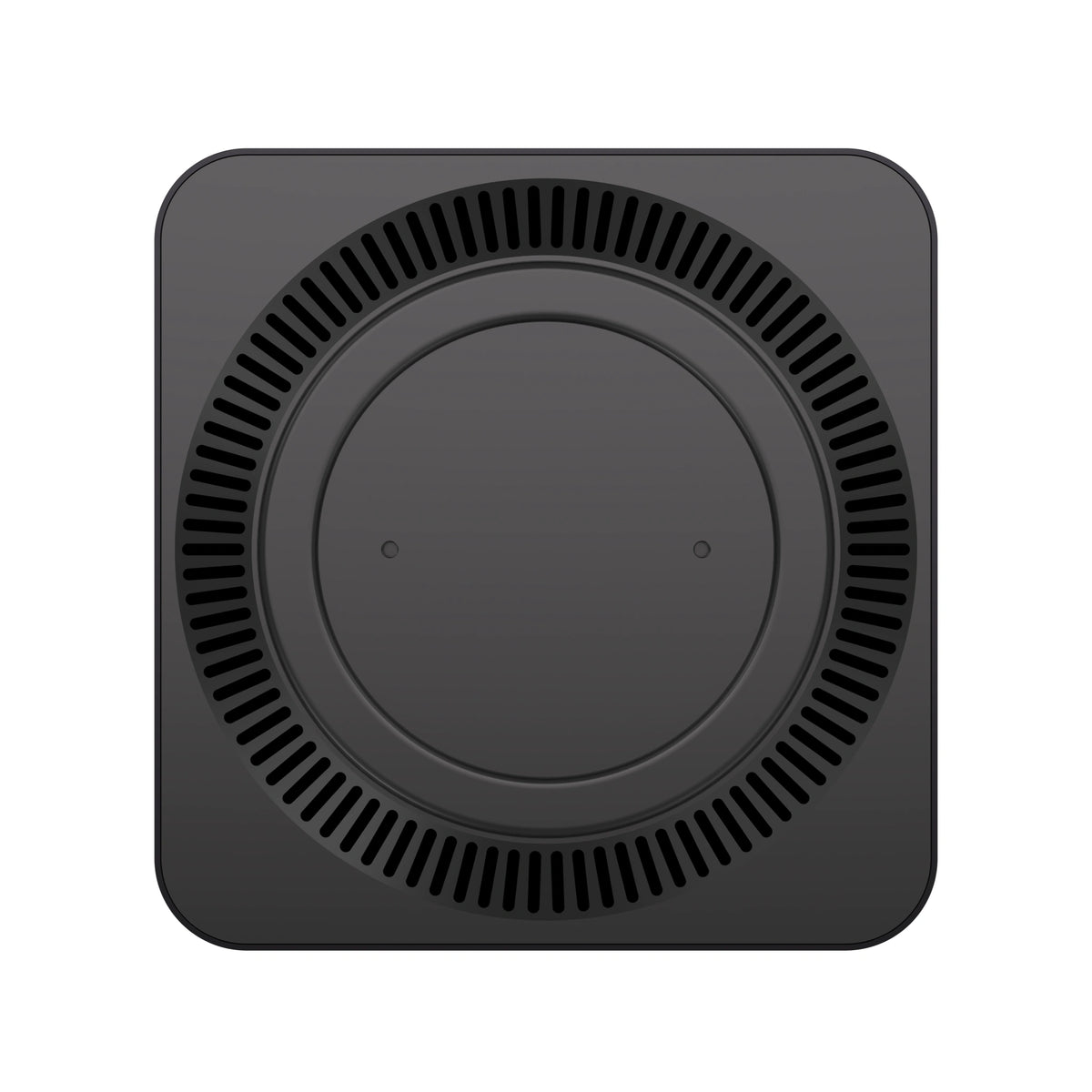
Because some situations, such as having a 24/7 server or handling batch jobs, may keep your mini PC under heavy load for many hours in a row, your computer’s cooling is very important to how well it can handle video transcoding.
Cooling also helps a computer keep up its performance over time and reduces the chances of overheating or thermal throttling. While many mini PCs and computers in general may say they can hold up to heavy loads for hours at a time, always look for testing that backs up any claims.
For example, VZMORE’s sustained-load thermal test, conducted on the iX9 Max (Core Ultra 9 185H) at 25°C, measured peak power of 80W, 65W of sustained power, 34.5°C top cover temp, 44.9°C exhaust temp, and a noise level of 38 dB.
RAM, Storage and Connectivity
Finally, your RAM, storage, and connectivity also influence video transcoding jobs:
- RAM: Having enough RAM helps to prevent slowdowns while multitasking and ensures that background tasks continue to run smoothly.
- Storage: Having plenty of free space, as well as a fast NVMe SSD, can prevent storage-related bottlenecks and keep larger and more intensive jobs moving forward.
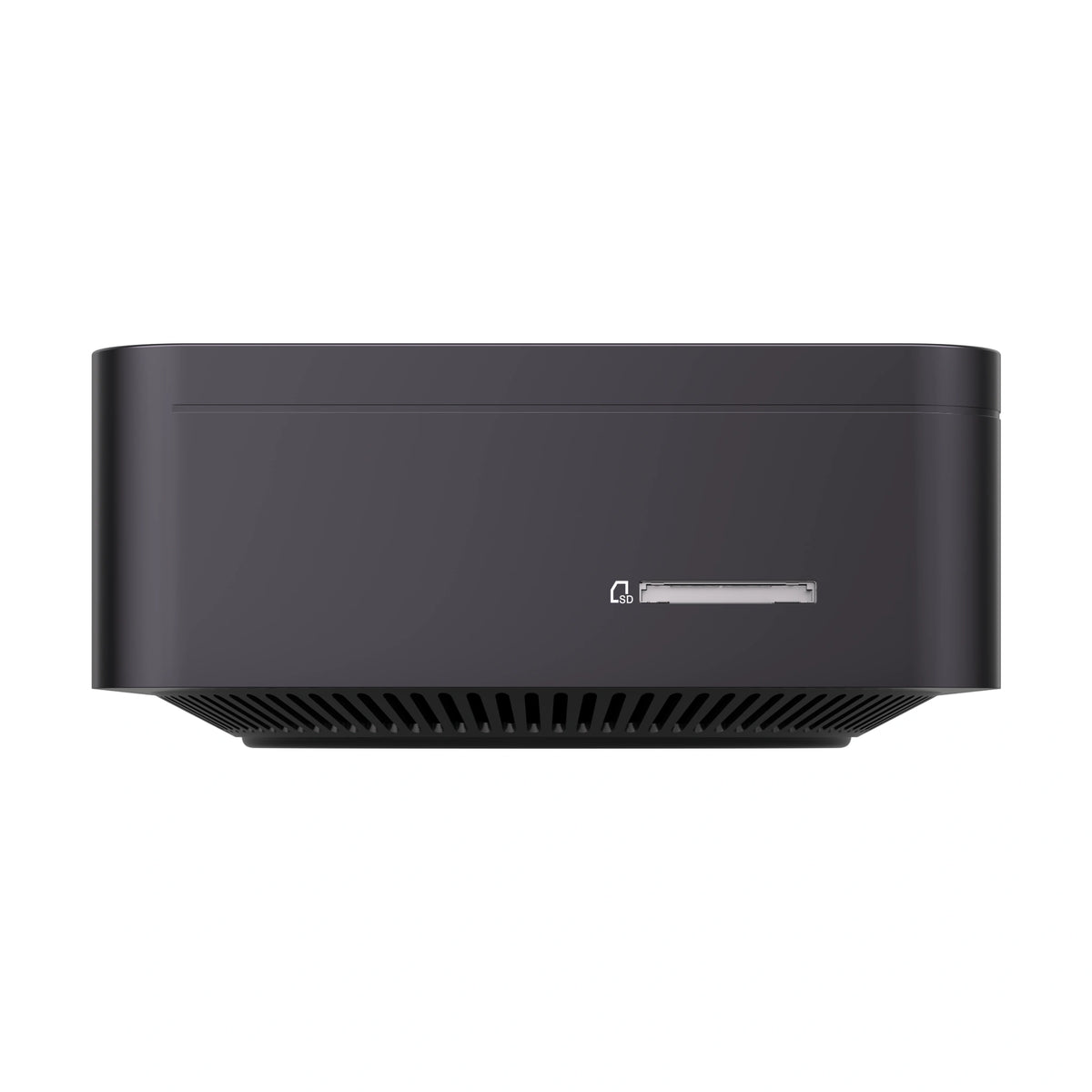
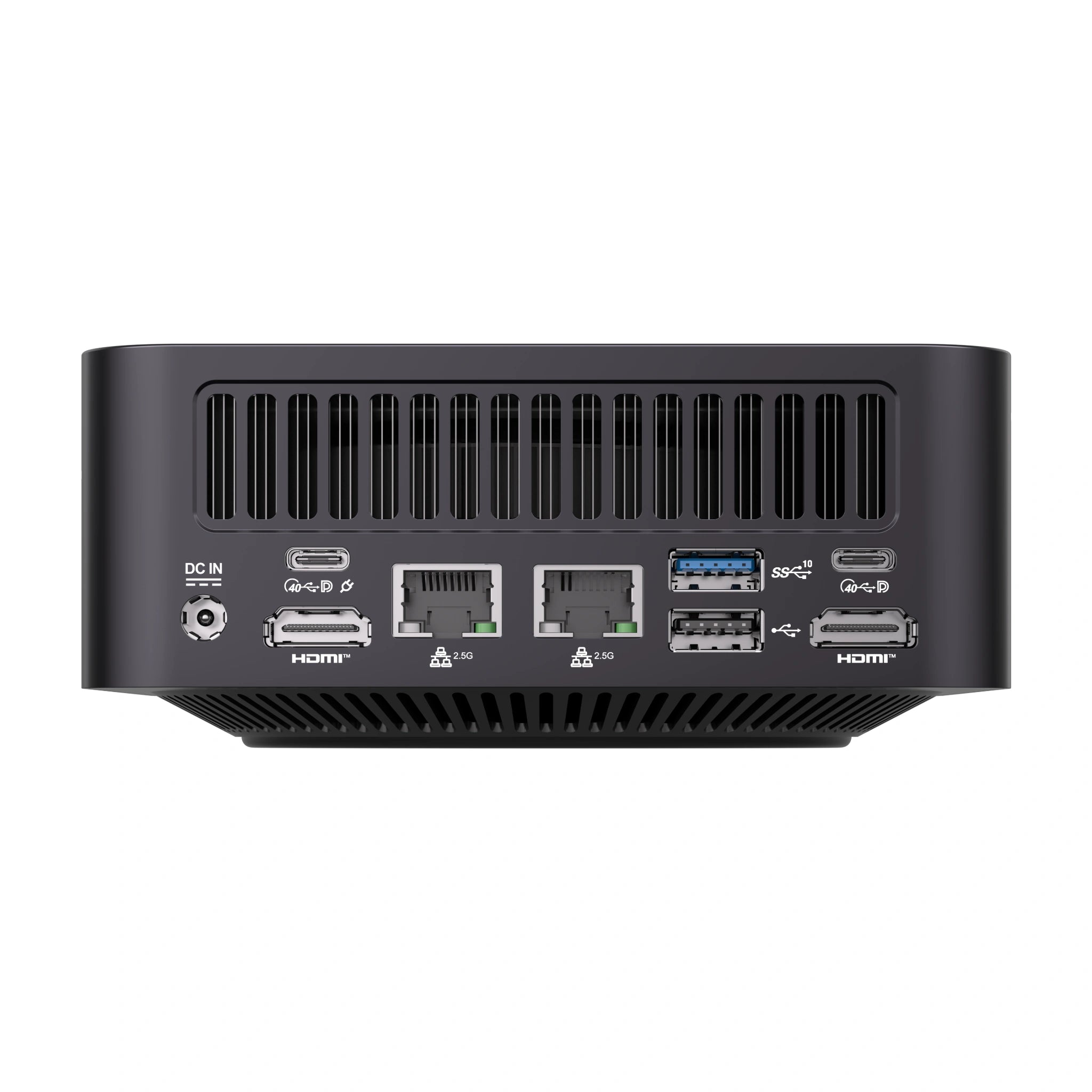
- Connectivity: While your computer handles the transcoding, great connectivity plays a role in how quickly files can get to your computer. For example, 2.5-gigabit Ethernet helps improve transfers from Network Attached Storage (NAS) libraries, USB4 offers high data transfer speeds for external drives, and an SD card reader lets you take footage directly from your camera quickly.
Real-Time vs. Batch Transcoding: Different Workloads, Different Requirements
There are a variety of video transcoding workloads, and each has different requirements.
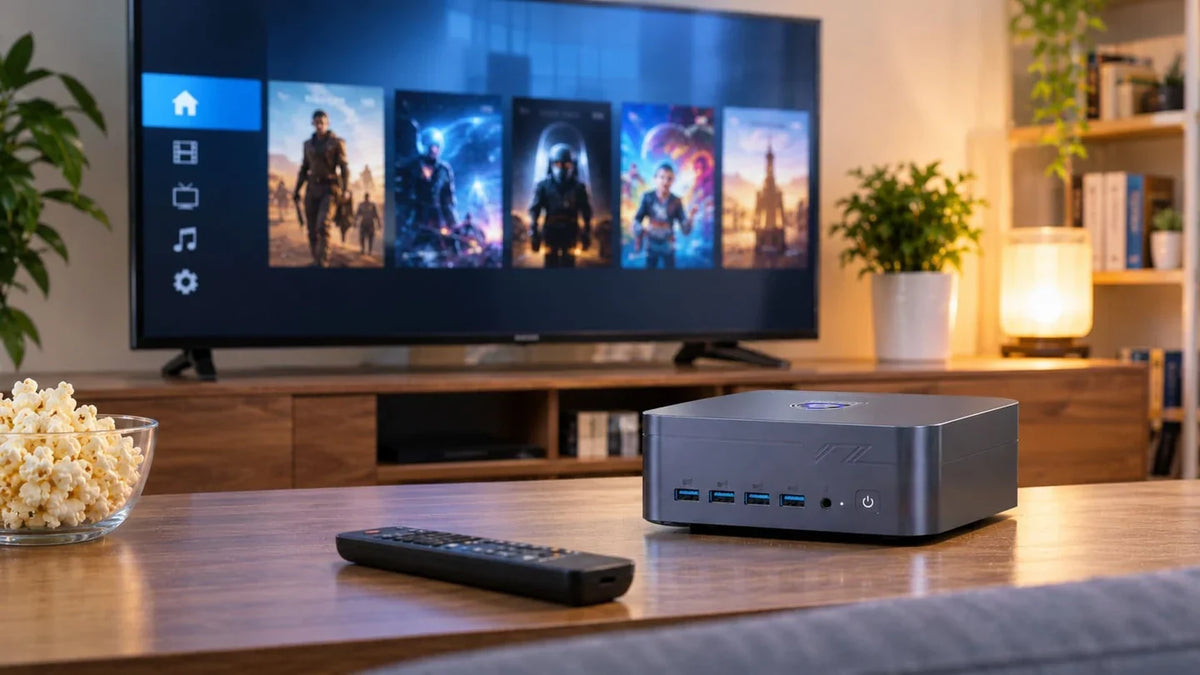
Running a Plex or Jellyfin Media Server
If you’re running a Plex or Jellyfin media server to stream videos, these platforms will use Direct Play by default if the client device supports the file. If the file isn’t supported and can’t be played, real-time transcoding takes place.
How demanding this real-time transcoding process is depends on a variety of factors, including:
- Video resolution
- Number of concurrent streams
- Hardware acceleration
- If audio transcoding is also needed
- Subtitle burn-in
- Network and device compatibility
Keep in mind that both Plex and Jellyfin have different hardware acceleration requirements and support. Plex hardware acceleration needs an active Plex Pass and is built around Intel Quick Sync Video (QSV), with more limited support for other options such as AMD and NVIDIA GPUs. Jellyfin supports Intel QSV as well as AMD AMF (on Windows) and VA-API (on Linux), though actual support depends on operating system, configuration, and drivers.
Batch Conversion with HandBrake or FFmpeg
For batch conversions with HandBrake or FFmpeg, you’ll often be converting dozens of files over a period of a few hours. The priority here may not be instant playback like it is with real-time transcoding, but potentially quality, efficiency, or processing speed.
As a result, if you’re regularly converting large video libraries and putting your computer under heavy load for prolonged periods, you’ll want to choose a mini PC that offers sustained processing performance.
During this conversion process, you may choose either software encoding or hardware encoding:
- Software encoding: Gives you more control and may deliver better quality per bitrate, but is often slower and keeps your computer under a heavy load for longer.
- Hardware encoding: Generally a faster and more efficient method, though visual quality and compression efficiency vary.
Also, be aware that transcoding time and final file size are dictated by things like resolution, frame rate, codec, and bitrate.
Video Editing, Proxy Generation and Exporting
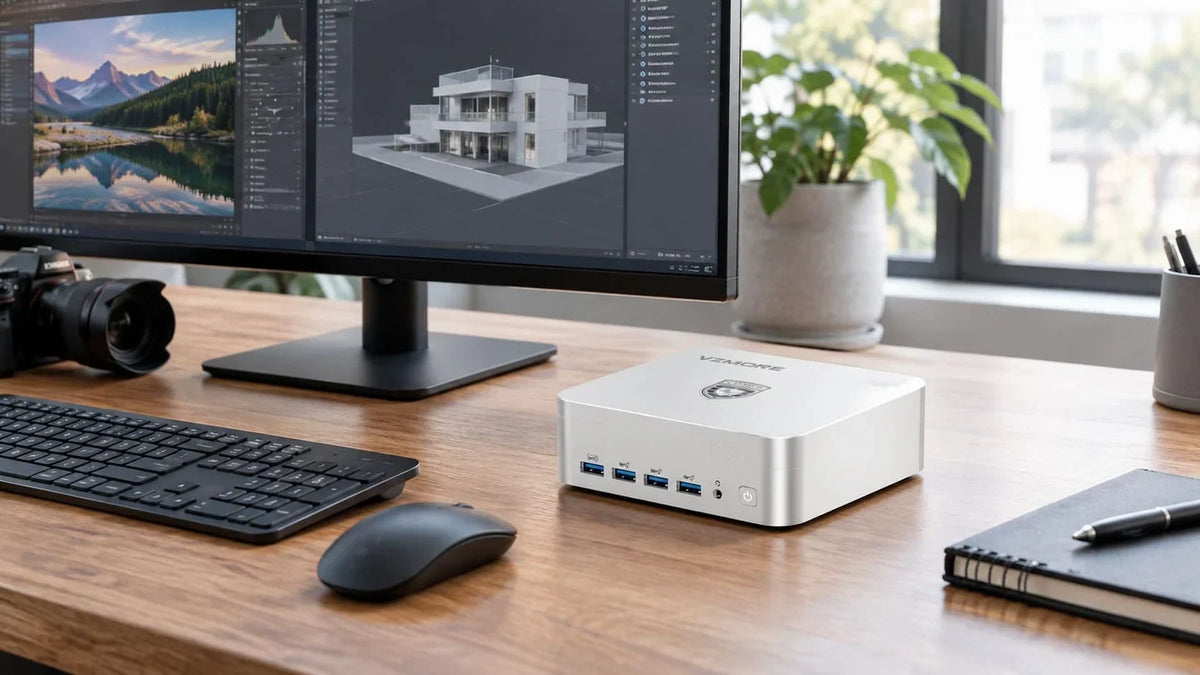
Video editing often requires a balanced system, where success often depends on not just your CPU performance, but also GPU acceleration, RAM, storage speed, and more.
Because high-resolution camera footage may be difficult to edit, many types of video editing software can create lower-res versions of original footage (called proxies), which are easier and smoother to edit. However, generating these proxies takes processing power, and how quickly you can create them depends on your hardware.
Once edits are done, you also need a computer that’s capable of rendering the project, encoding the video, and exporting the project.
How to Choose a Mini PC for Your Video Transcoding Workload
This table goes over how you should choose a mini PC for video transcoding, based on your expected activities and workload.
|
Workload |
What to Prioritize |
Suggested Configuration |
|---|---|---|
|
Occasional 1080p Conversion |
A modern computer that features a decent amount of RAM and SSD storage. Something high-end often isn’t needed for this type of work. |
Intel Core i3/i5 or AMD Ryzen 5. 16 GB RAM. 512 GB SSD. Integrated graphics. |
|
4K HEVC Conversion |
A slightly stronger and higher-performing CPU, HEVC 10-bit hardware decoding and encoding support, and adequate cooling. |
Intel Core i5/i7 or AMD Ryzen 7. 32 GB RAM. 1 TB SSD. Hardware acceleration that supports HEVC. |
|
Plex/Jellyfin Home Server |
Low power consumption, sufficient storage, reliable networking, and hardware video encoding and decoding, especially support for Intel Quick Sync. |
Intel Core i3/i5, with an integrated GPU that supports Intel Quick Sync. Anywhere from 8 to 16 GB RAM and 256 to 512 GB SSD. |
|
Multiple Concurrent Streams |
Great CPU performance, good cooling, plenty of RAM, and a hardware encoder that can support multiple streams. Also, make sure to consider things like resolution and codecs. |
Intel Core i5/i7 with a capable GPU. From 16 to 32 GB RAM and 512 GB to 1 TB SSD. |
|
Video Production and Batch Exports |
Solid performance over time and plenty of cooling to support long editing and rendering sessions. Also, fast storage, enough RAM for your needs, and great CPU/GPU performance. |
Intel Core Ultra 7/i7 (or Intel Core Ultra 9/i9) or AMD Ryzen 7/9 with a capable GPU. 32 to 64 GB RAM and 1 to 2 TB NVMe SSD. |
Which VZMORE Mini PC Is Worth Considering for Video Transcoding?
VZMORE offers a variety of mini PCs to handle many different tasks, and here are a few worth considering for video transcoding.
|
Model |
Processor/Graphics |
Memory and Storage |
Potential Fit |
|---|---|---|---|
|
Intel Core Ultra 5 125U, Intel AI Boost (Up to 11 TOPS), and Intel Arc Graphics, equipped with Intel Quick Sync. |
Dual-channel 16 GB onboard memory and a 512 GB SSD (up to 4 TB), plus an empty SSD slot (up to 1 TB). |
A solid entry-level option for 1080p conversions, everyday processing, and a basic server. |
|
|
Intel Core Ultra 9 185H, Intel AI Boost (Up to 11 TOPS), and Intel Arc Graphics, equipped with Intel Quick Sync. |
Dual-channel 24 GB onboard memory and 1 TB SSD, with support up to 4 TB, plus an empty SSD slot that supports up to 1 TB. |
A stronger option for frequent HEVC conversions and more demanding software encoding. Its improved specs make it a very versatile option for video transcoding. |
|
|
AMD Ryzen AI 9 HX 470, AMD Ryzen AI NPU (55 TOPS), and AMD Radeon 890M. |
Dual-channel 32 GB DDR5 SO-DIMM memory, expandable up to 256 GB. 1 TB SSD, expandable up to 4 TB, plus an empty SSD slot that supports up to 1 TB. |
Well-suited for demanding editing workflows, batch exports, and video production. Expandable memory also makes it an attractive choice for larger projects and multitasking. |
Why Consider the iX9 Max for Hardware-Accelerated Transcoding?
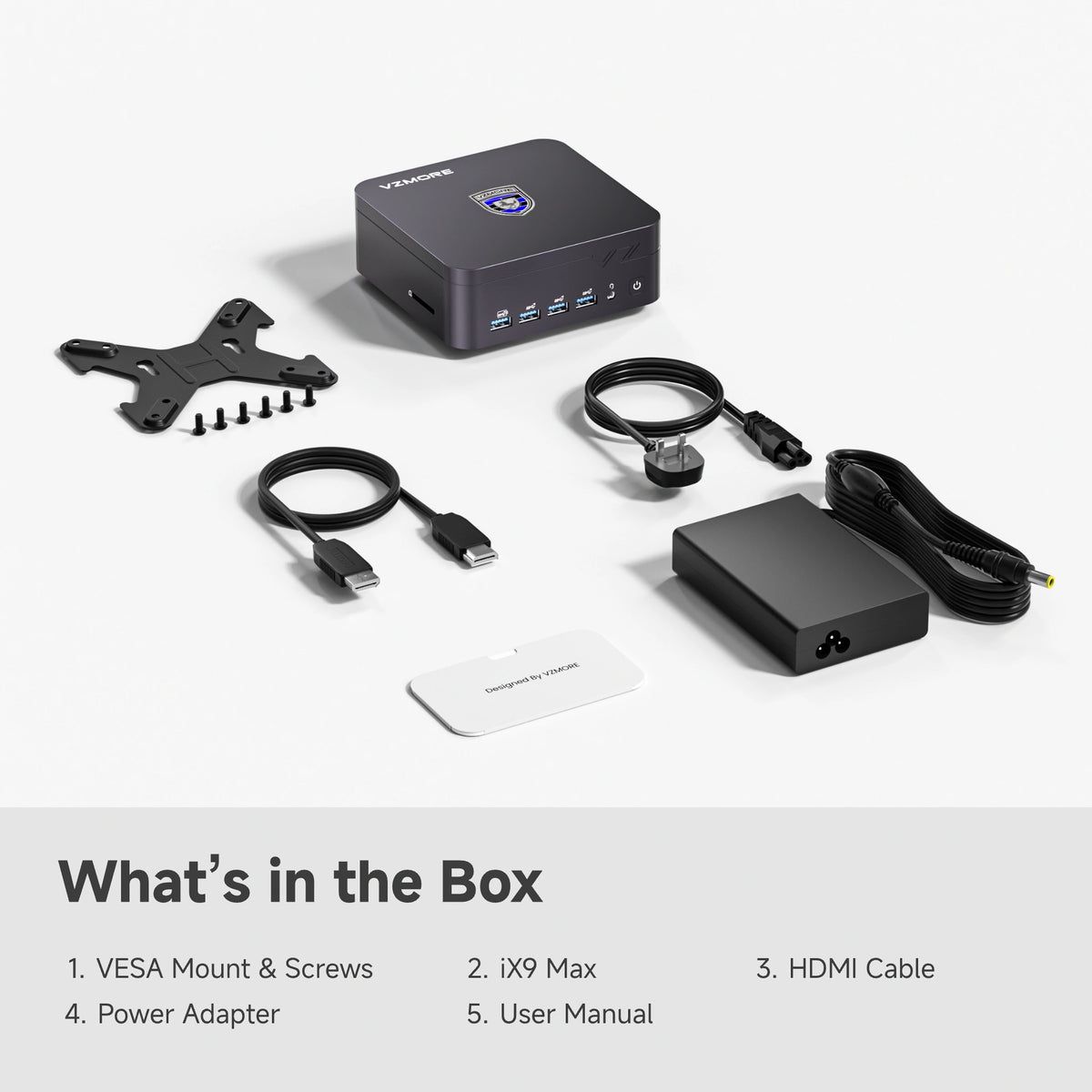
One of the biggest reasons to consider the iX9 Max for hardware-accelerated transcoding is that it features Intel Arc Graphics, which comes equipped with Intel Quick Sync. It’s also very versatile, as Intel lists hardware encode and decode support for H.264/AVC, H.265/HEVC, and AV1.
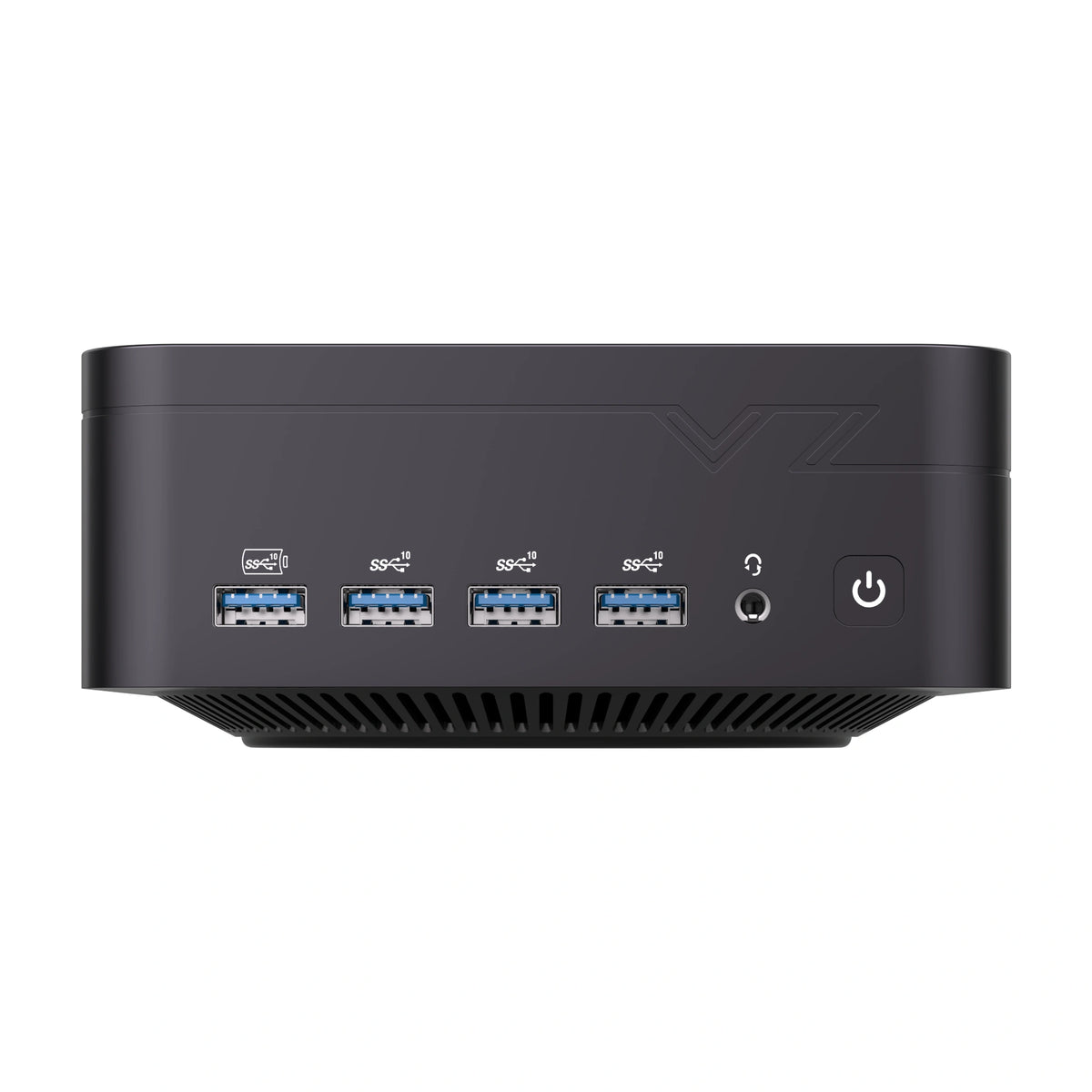
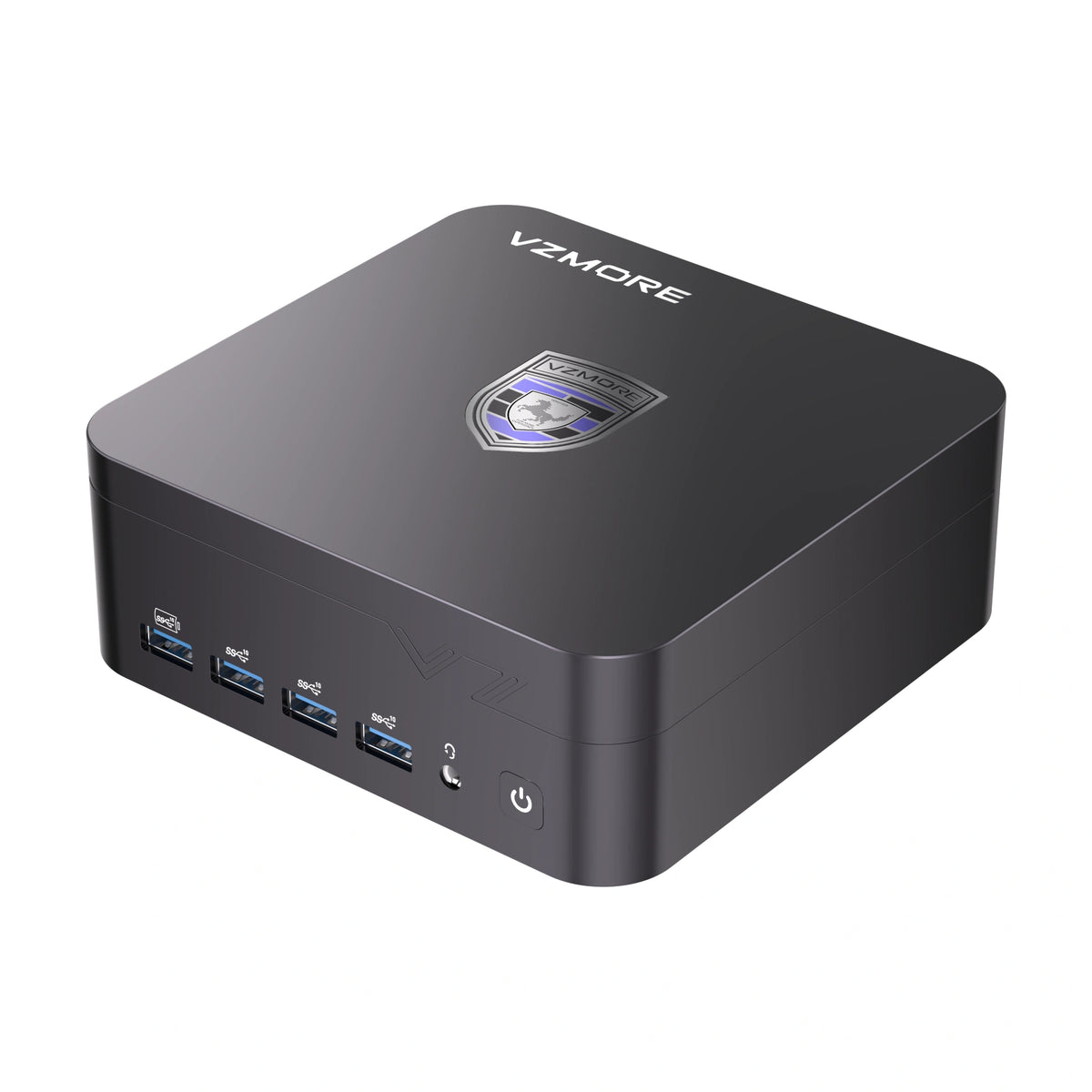
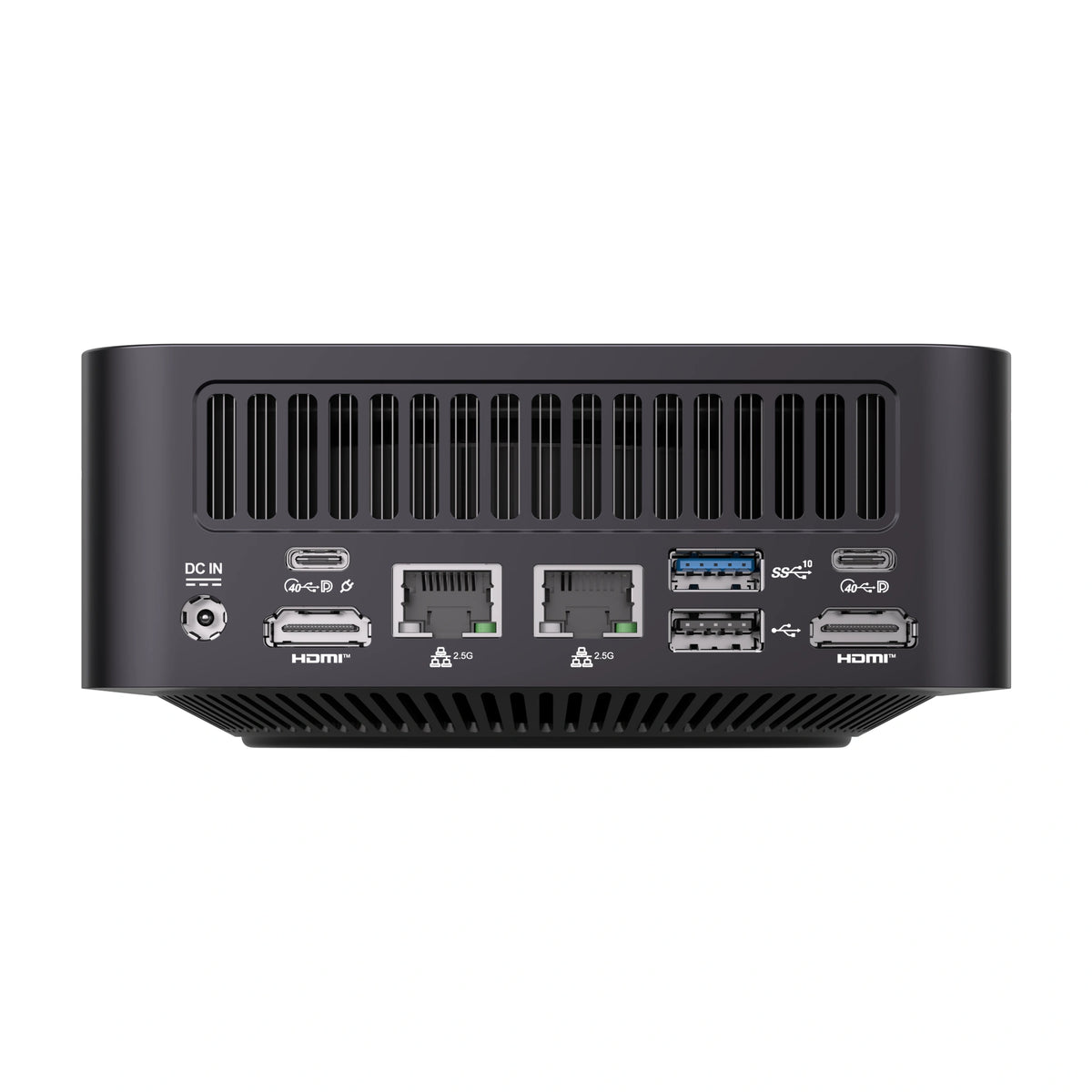
The iX9 Max’s dual 2.5-gigabit Ethernet, USB4, and SD reader support both server and creator use, and the mini PC is a strong choice for Plex, Jellyfin, and FFmpeg workflows. It also offers sustained performance over time, as seen in the thermal test referenced earlier.
Keep in mind that the 80W peak and 65W sustained figures come from a maximum sustained-load stress test, not from typical server use. For lighter always-on duty, the iX9 Max also offers 20W Silent and 40W Normal power modes, while the iX5 Max tops out at 28W in Performance mode.
However, keep in mind that the computer has 24 GB of non-upgradable memory, so it may not be right for every workflow.
When Does the AX9 Max Make More Sense?
If you need your mini PC to handle multitasking, editing, or CPU-heavy batch jobs, the AX9 Max may be a better choice. It features dual M.2 storage, massively upgradable memory, and an NPU capable of reaching 55 TOPS, making it a great option for AI-assisted workflows.
However, if you use or plan to use Plex, keep in mind that its hardware transcoding is built around Intel Quick Sync and has more limited AMD support, so you may want to go with the iX9 Max just to be safe.
FAQs About Mini PCs for Video Transcoding
Here are some common questions about mini PCs for video transcoding, along with their answers.
Can a Mini PC transcode 4K video?
Yes, as long as the mini PC has the right hardware acceleration and a suitable processor, it can generally transcode 4K video.
Is Intel Quick Sync better than AMD for video transcoding?
Not necessarily, but Intel Quick Sync has the broadest and most mature software support, especially in Plex and Jellyfin, which makes it the safest choice for those platforms. AMD’s VCN is capable, but software support is more limited, particularly in Plex. If you use FFmpeg, HandBrake, or Jellyfin, AMD can work well depending on your operating system, configuration, and drivers.
How much RAM do I need for video transcoding?
Video transcoding itself isn’t very RAM-intensive, but the operating system, media server, and other apps running alongside it add up. For a dedicated Plex or Jellyfin server, 8 to 16 GB is usually enough, and 16 GB is a comfortable starting point for occasional 1080p conversion. For 4K HEVC conversion, multiple concurrent streams, or video production, 16 to 32 GB or more will serve you better.
Is hardware transcoding better than software transcoding?
Generally, yes. Hardware transcoding is often faster, more efficient, and better at handling multiple streams at the same time. However, software transcoding may offer better quality and flexibility.
Does video transcoding require a dedicated graphics card?
No, you don’t need a dedicated graphics card for video transcoding.
Can I use a Mini PC as an always-on media server?
Yes, a mini PC is a solid choice for an always-on media server, as it doesn’t take up a lot of space and can run at modest power levels. Actual power draw depends on the model and power mode: for example, the iX5 Max tops out at 28W, while the iX9 Max can run in a 20W Silent or 40W Normal mode for lighter workloads.

VZMORE is a leading manufacturer of AI Mini PCs. Our systems combine whisper-quiet VC cooling, high performance, and intelligent AI processing power—tailored for demanding applications in home offices, creative workflows, and edge computing. Enjoy free shipping on all orders.
Recommended Product





Related Articles

Subscribe to Newsletter
Get the latest news, product updates, and exclusive offers delivered straight to your inbox.