




Thin Client vs Mini PC: The Key Differences for Business Use
A network problem in an office can affect different workstations in very different ways. Some employees can carry on working with programmes installed on their computers, while others lose access to their company desktop until the connection is restored. The difference largely depends on how the organisation's IT infrastructure is set up.
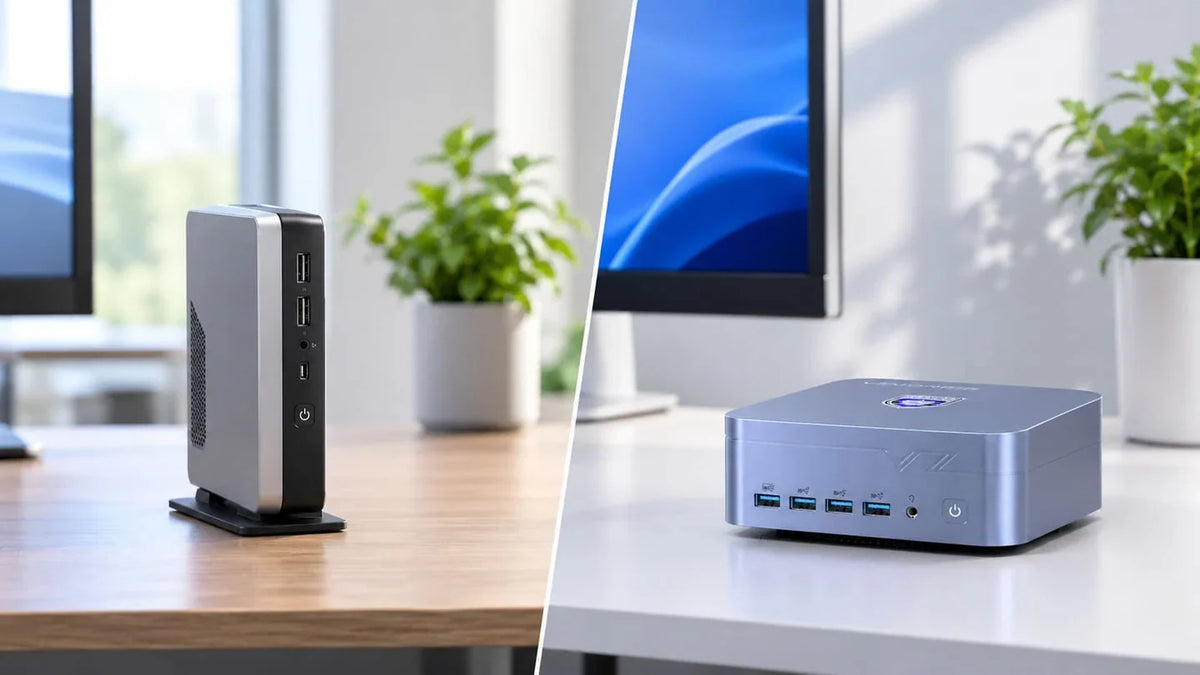
Thin clients and mini PCs follow two distinct approaches. These affect offline working, peripheral support, performance and data management.
Where Do Applications Run? The Main Difference
To understand the difference between a thin client and a mini PC, consider what happens when you open an application.
On a thin client, the application usually runs on a company server or in a cloud environment. The monitor displays a remote desktop, which you control using a keyboard and mouse. This setup is often delivered through VDI, or Virtual Desktop Infrastructure: an infrastructure that allows an organisation to host and manage multiple virtual desktops. When the remote computer is provided as a cloud service, such as Windows 365, it is also known as a Cloud PC.
A mini PC, by contrast, has everything it needs to run its operating system and applications independently: a processor, RAM and storage. You can install programmes, work on documents and save files directly to the device, just as you would on a conventional desktop computer.
The difference mainly affects performance and reliance on the network. A thin client primarily uses resources allocated on a remote server, whereas a mini PC processes tasks using its own hardware.
From Traditional Terminals to Cloud PCs
Thin clients became popular in businesses that wanted to manage multiple workstations through a centralised infrastructure. These terminals used lightweight operating systems and limited hardware resources, which were sufficient for accessing applications installed on company servers.
As cloud computing became more widespread, the same model expanded to desktops hosted in a service provider's data centres. Windows 365 Link, for example, is a Microsoft device designed to access a Windows 365 Cloud PC. The service requires a compatible licence, and the IT department can manage the terminal through Microsoft Intune.
Compared with a VDI hosted on the company's own premises, the main difference is the location of the remote computer. Applications and desktops can run in the cloud, reducing the need to maintain physical servers in the office. However, this also increases reliance on an internet connection and a recurring service subscription.
The Differences You Notice in Everyday Office Work
The practical consequences of these two architectures become clear when something interrupts normal working routines. A network failure, an unrecognised peripheral or an unreliable video call may require different solutions depending on whether applications run locally or on a remote desktop.
When the Network or Server Is Unavailable
Imagine an office where everyone accesses Windows through a Cloud PC. If the internet connection goes down, remote sessions become inaccessible and work stops until the connection is restored.
With a VDI hosted on internal servers, the situation depends on the type of failure. If only internet access is lost, thin clients may continue working over the local network. If the server hosting the virtual desktops goes down, however, all connected workstations lose access to their applications.
A mini PC allows employees to continue working with locally installed programmes and saved documents. Services that require an internet connection, such as web-based email, cloud storage and many business management applications, will still be unavailable.
In VDI environments, backup connections, redundant servers and business continuity procedures can reduce the risk of disruption. In offices that rely mainly on locally installed applications, a mini PC offers greater independence from the network.
Video Calls and Multimedia
During a Microsoft Teams or Zoom meeting, a thin client needs to handle the webcam, microphone, speakers and screen sharing through the virtual environment. To avoid delays, excessive bandwidth consumption and reduced call quality, the VDI software must be configured correctly.
Compatible platforms can use multimedia optimisation, which processes some audio and video tasks on the terminal rather than on the server. Microsoft explains this approach in its Teams optimisation documentation for Azure Virtual Desktop. The result depends on compatibility between the terminal, remote desktop client, VDI system and application version.
On a mini PC, Teams and Zoom run directly in Windows and use the webcam and microphone connected to the computer. The setup is therefore similar to that of a conventional desktop, as explained in our guide to mini PCs for working from home.
If video calls take up a large part of the working day, it is important in both cases to check network quality and confirm peripheral compatibility in advance.
Peripherals: From Printers to Digital Signature Readers
In a professional office, employees may need to sign a document using a smart card, scan it and print a copy. With a thin client, these tasks require the peripherals connected to the workstation to be made available within the virtual desktop as well.
This feature is known as redirection. In compatible environments, smart cards, printers, USB drives and other devices can be redirected. For scanners, label printers and specialist equipment, you should also check driver support and compatibility with the software used by the organisation.
With a mini PC, smart card readers, scanners and printers connect directly to the computer's ports. Once the necessary drivers are installed, Windows manages them as standard local peripherals.
Compatibility still needs to be checked in both cases, particularly when using older devices or specialist applications for digital signatures, national identity services and other professional systems.
Security and Data Management
With a thin client, documents are generally stored in the remote environment. If the terminal is stolen or damaged, files stored on the server remain available, provided the infrastructure, user accounts and access procedures are properly protected.
The IT department can restrict USB connections, clipboard redirection and the transfer of documents from the virtual desktop to the local device. However, a thin client is not automatically secure. Its firmware, credentials, access controls and software still need to be updated and managed.
On a mini PC, files can be stored directly on the SSD. Windows 11 Pro includes BitLocker, which encrypts drives and helps prevent access to data without the required credentials or recovery keys.
Business Windows computers can also be managed remotely. Through Microsoft Intune, administrators can deploy applications, configure updates and apply security policies to supported devices.
The choice therefore depends on where documents need to be stored and how much control the organisation requires. Both architectures need proper management of user accounts, updates and backups.
Demanding Software: CAD, Photography and Local AI
A traditional thin client has limited hardware resources. To run demanding programmes such as CAD software, professional photo-editing tools or artificial intelligence applications, it relies on the processing power of the server or Cloud PC.
Performance depends on the resources allocated to the virtual desktop and the quality of the network connection. Even complex professional applications can run in a VDI environment, provided the infrastructure has sufficient CPU power, memory, storage and graphics acceleration.
A mini PC, on the other hand, runs applications using its own hardware. More powerful models can handle photography, design, development and various local AI workloads. However, demanding tasks require specific configurations. When choosing a mini PC for AI workloads, it is important to consider the processor, memory capacity and type, graphics performance and software support.
In either case, the configuration should be based on the actual requirements of the applications used every day.
Long-Term Costs
To compare the cost of a thin client and a mini PC, you need to consider the entire lifecycle: hardware purchases, licences, maintenance, administration and energy consumption.
A thin client requires remote infrastructure. If the organisation uses its own servers, it must purchase and maintain them, keep them updated and provide backups and redundancy. With a Cloud PC, recurring subscriptions are required instead, such as those included in Windows 365 plans.
For a mini PC, costs are mainly associated with the device itself, software licences and maintenance. Additional subscriptions may be needed for applications and cloud services.
Energy consumption also affects the overall cost. A thin client may use very little power at an individual desk, but a fair comparison must also include the servers or data centres running the virtual desktops. There is therefore no solution that is always cheaper. The result depends on the number of workstations and the infrastructure already available.
Thin Client vs Mini PC
| Criteria | Thin Client | Mini PC |
|---|---|---|
| Where work is processed | Company server or cloud | Locally on the computer, with remote access also available |
| Working without a network connection | Loses access to the remote desktop | Can use locally installed programmes and files |
| Video calls | May require VDI multimedia optimisation | Processed locally |
| Specialist peripherals | Redirection and compatibility need to be checked | Drivers installed locally |
| Demanding software | Depends on server or Cloud PC resources | Depends on local hardware |
| Management | Centralised | Can also be centrally managed, for example through Intune |
Can a Mini PC Also Work as a Thin Client?
A mini PC can connect to virtual desktops hosted on company servers or in the cloud using applications such as Windows App, Remote Desktop Connection or Citrix Workspace.
This means you can use Microsoft 365 and other programmes installed on the computer, then open a remote desktop only when needed. For example, you might use it to access a company management system or data that must remain within the central infrastructure.
This flexibility is useful for businesses that combine local and remote working or are gradually moving towards a VDI environment. A dedicated thin client, by contrast, is designed primarily for remote access and generally offers fewer local computing options than a fully equipped computer.
Which Solution Should You Choose for Your Business?
The right choice depends on your existing infrastructure, the applications you use and the requirements of individual workstations.
A thin client is particularly suitable for organisations that already use virtual desktops, such as call centres, reception areas, customer service counters and computer classrooms. In these environments, centralised management simplifies software updates, access control and the configuration of multiple workstations with similar requirements.
A mini PC is generally better suited to professional practices, offices and small businesses that use local applications and peripherals without having an existing VDI infrastructure. It can still access remote desktops when necessary, making it a flexible option for hybrid working and organisations gradually adopting cloud services.
VZMORE iX5 Max for Local and Remote Work
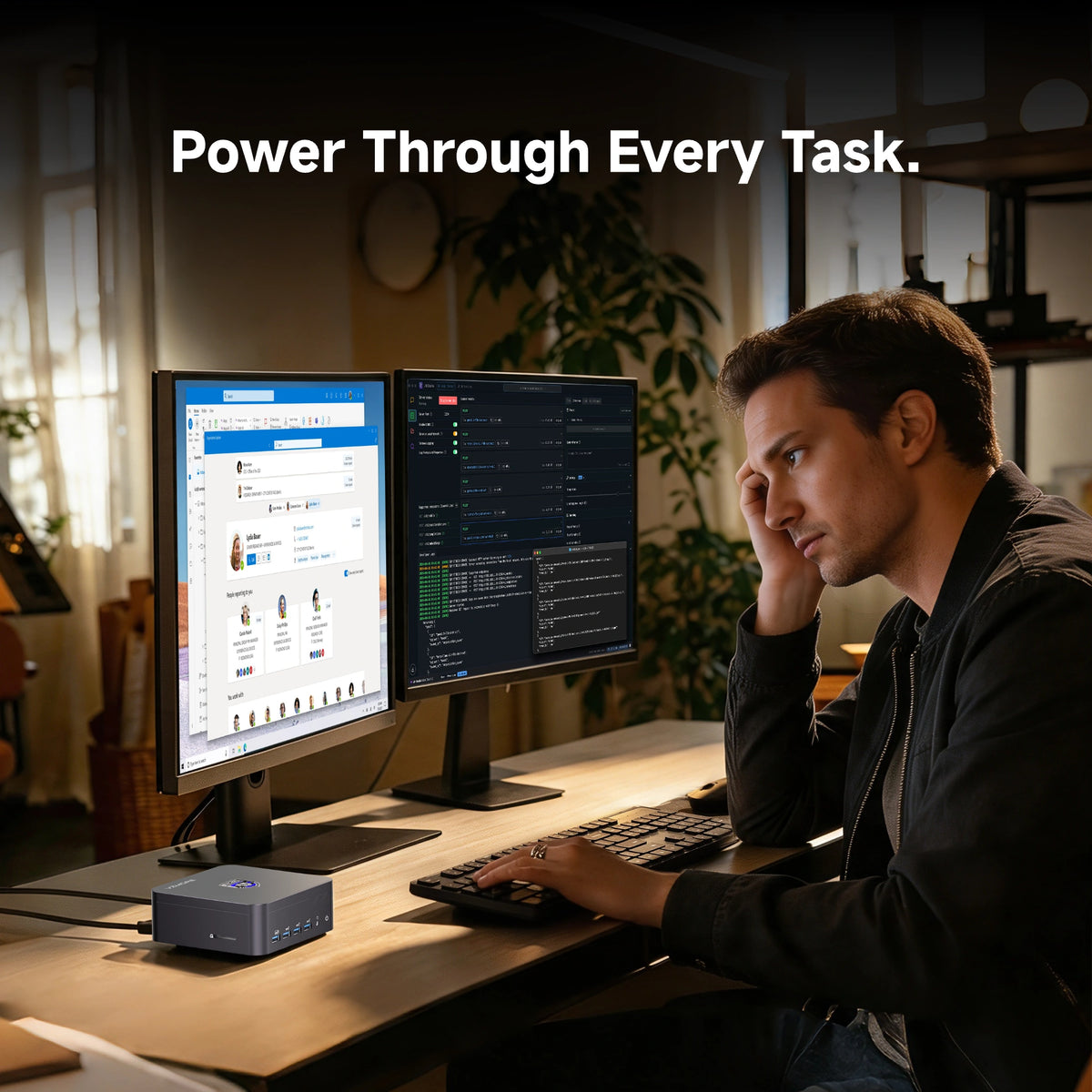
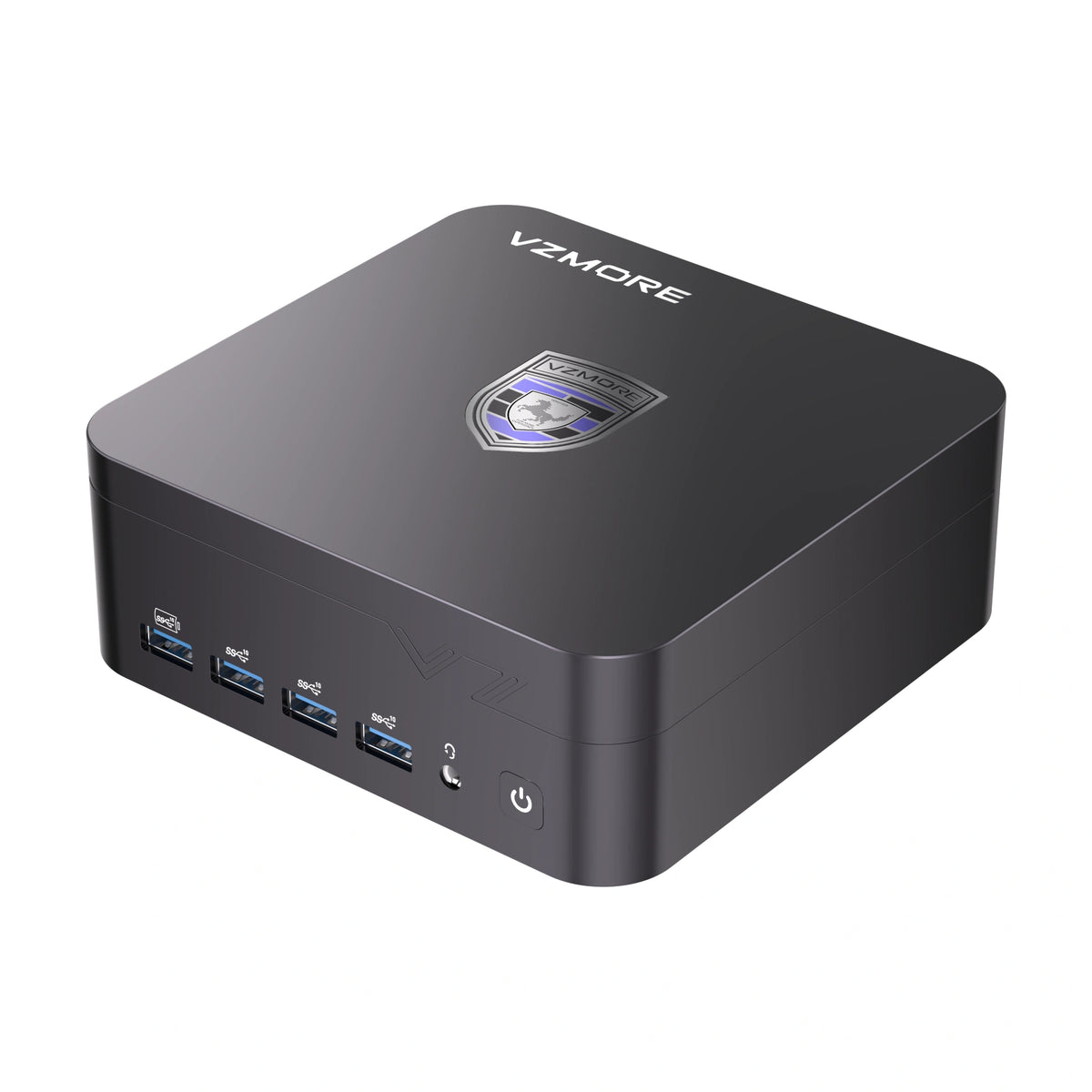
The VZMORE iX5 Max allows you to use local applications and virtual desktops from the same workstation. It features an Intel Core Ultra 5 125U processor with Intel Arc Graphics and Intel AI Boost delivering up to 13 TOPS.
Windows 11 Pro comes pre-installed, so the system is ready for Microsoft 365, web browsing, video calls and business software. To access a remote environment, you can use Windows App, Remote Desktop Connection or Citrix Workspace.
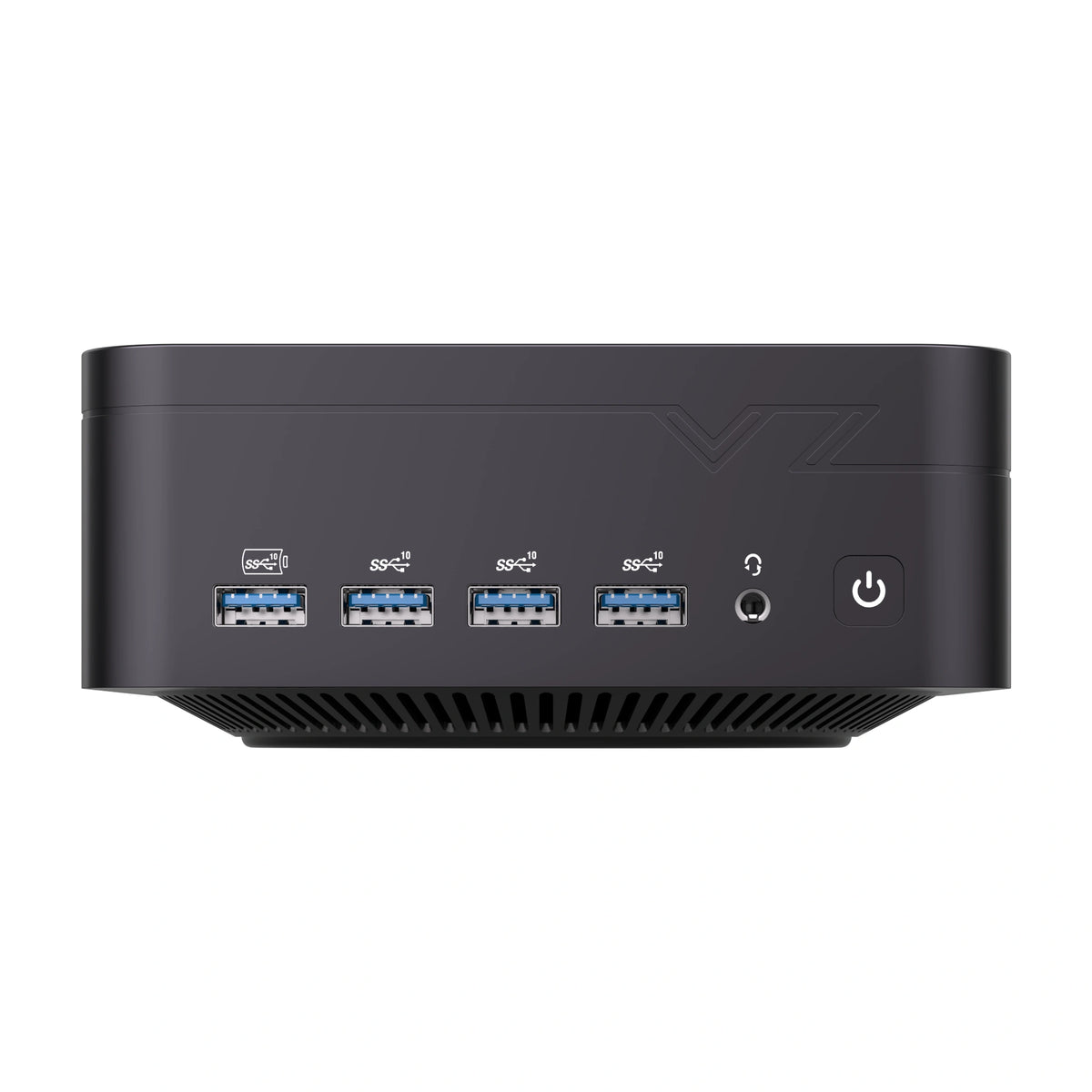
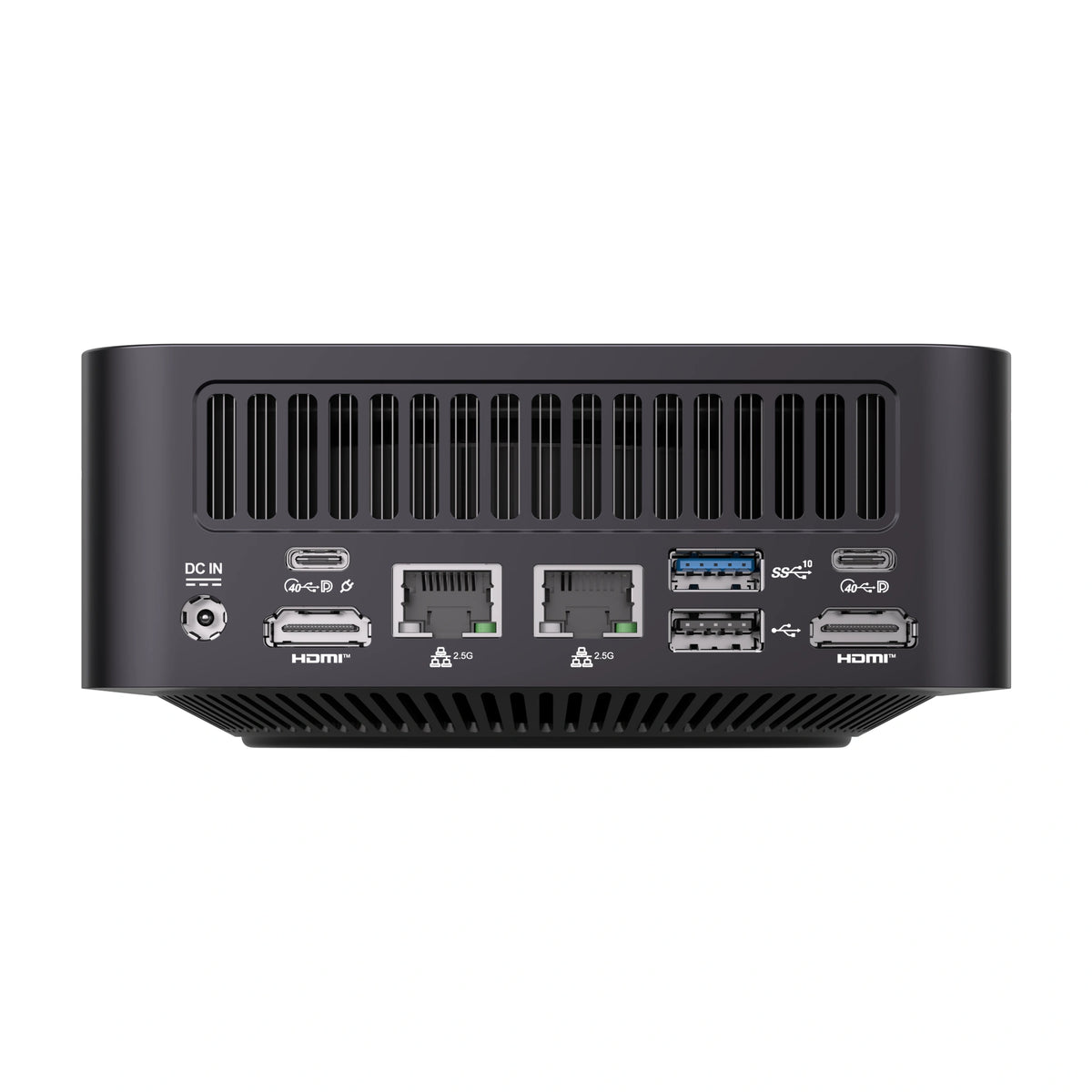
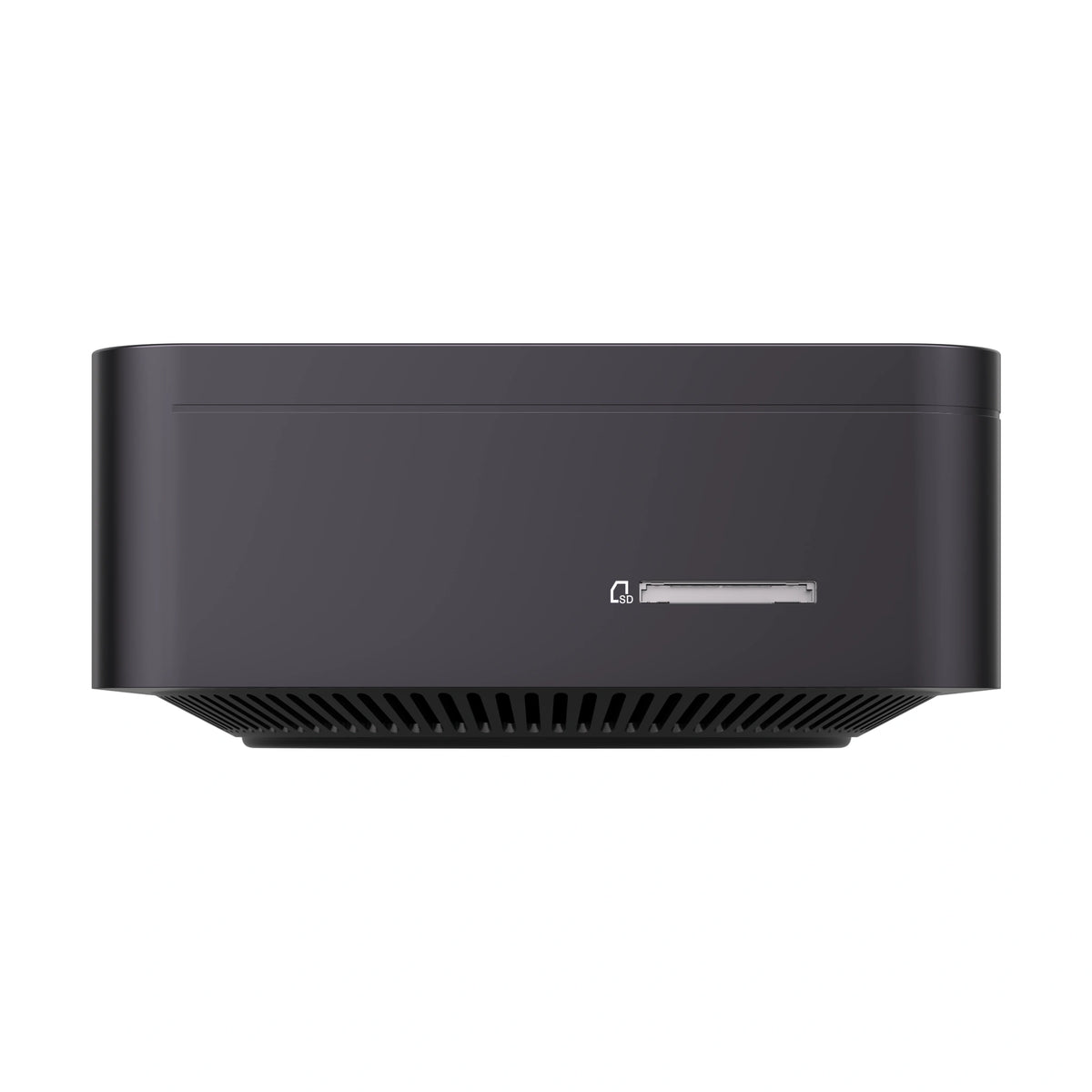
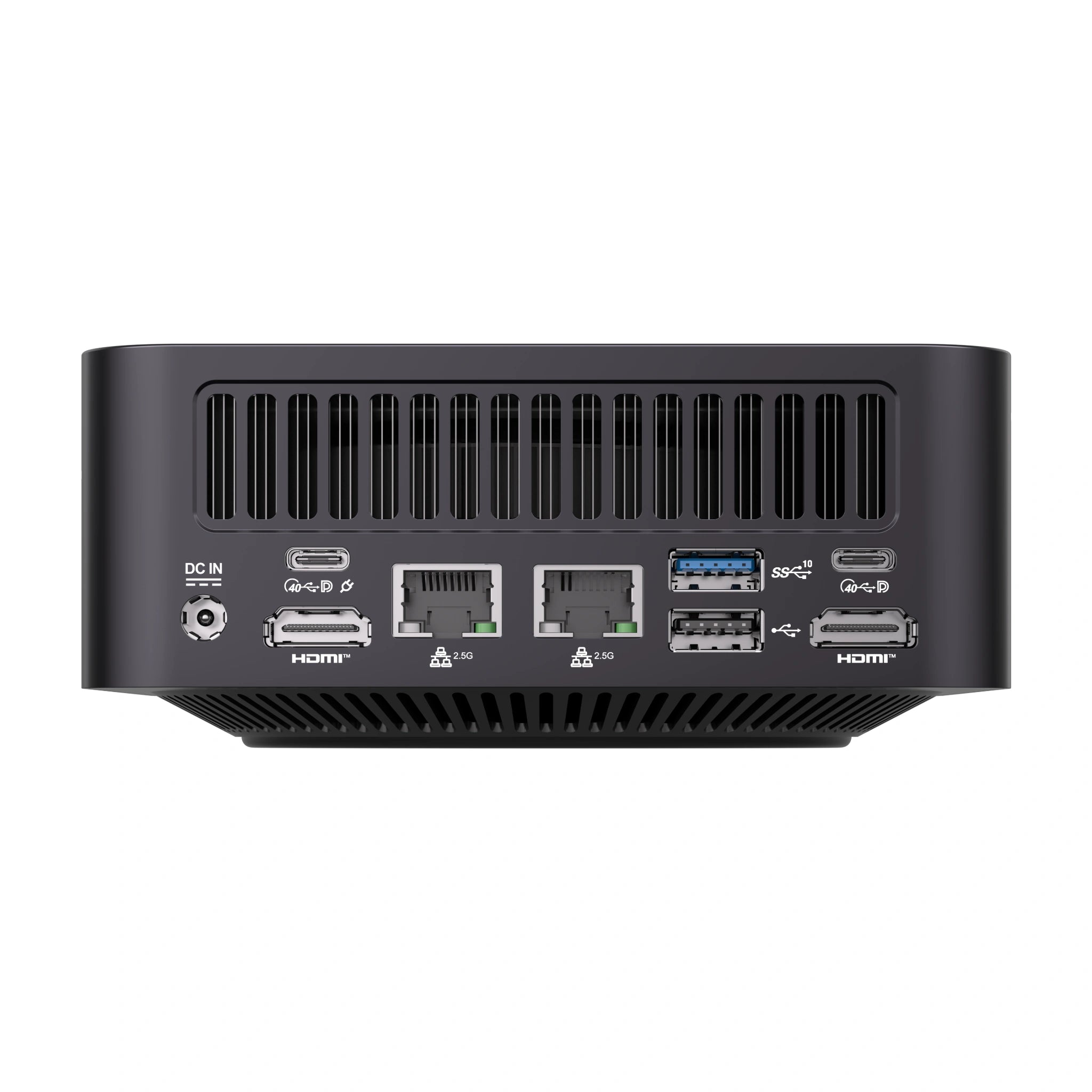
Connectivity includes two 2.5GbE Ethernet ports, Wi-Fi 7, Bluetooth 5.4, two 40Gbps USB4 ports and two HDMI 2.0 outputs. Depending on the resolution and configuration, the mini PC supports up to four compatible monitors. It also features six USB-A ports, a 3.5mm audio jack and an SD 4.0 card reader for scanners, smart card readers, external drives and other professional peripherals.
The 5600MHz LPDDR5 memory is integrated onto the motherboard and supports dual-channel configurations of up to 32GB. It cannot be upgraded after purchase. For storage, the system provides one M.2 2280 PCIe 4.0 x4 slot supporting drives of up to 4TB, plus a second M.2 2242 PCIe 4.0 x4 slot supporting drives of up to 1TB.
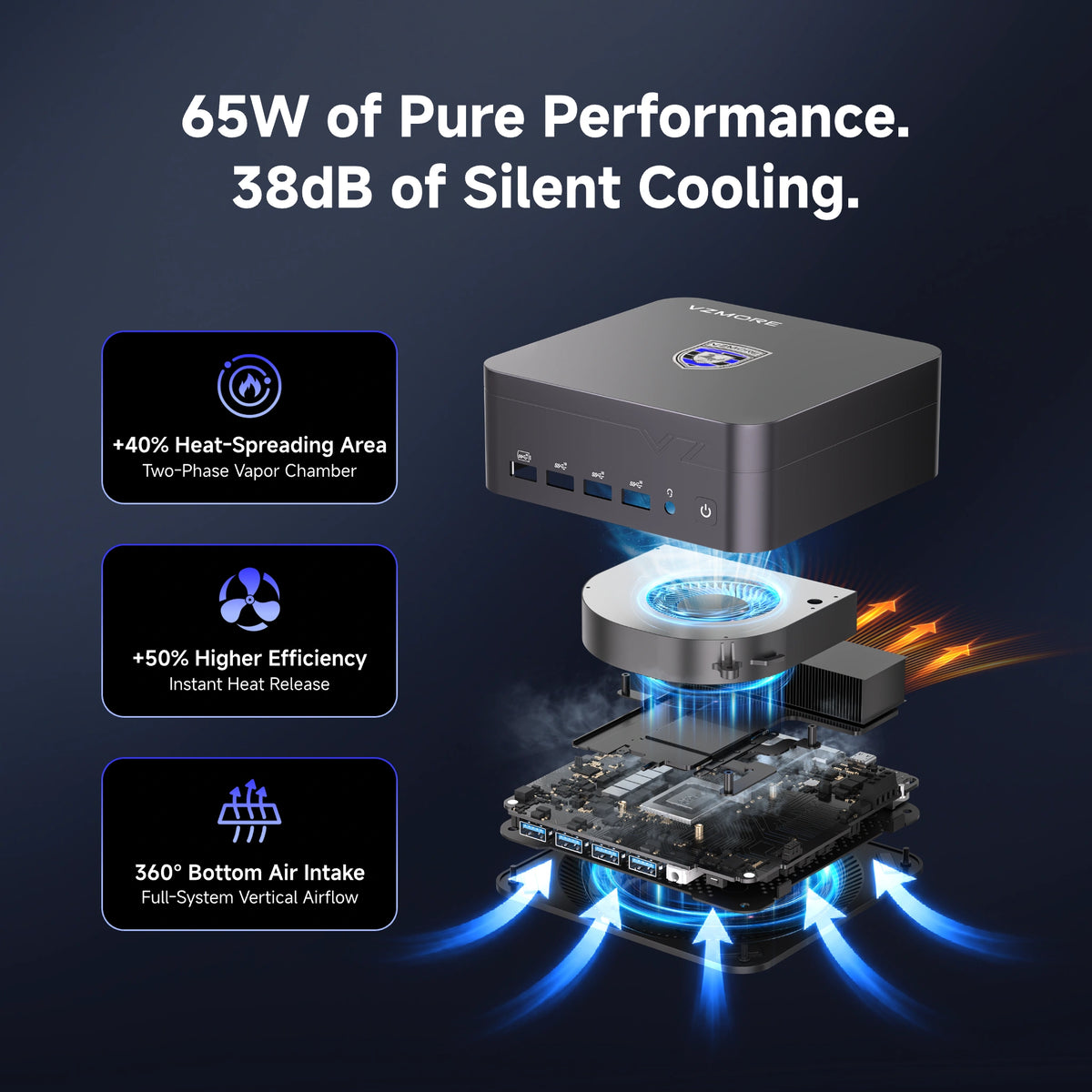
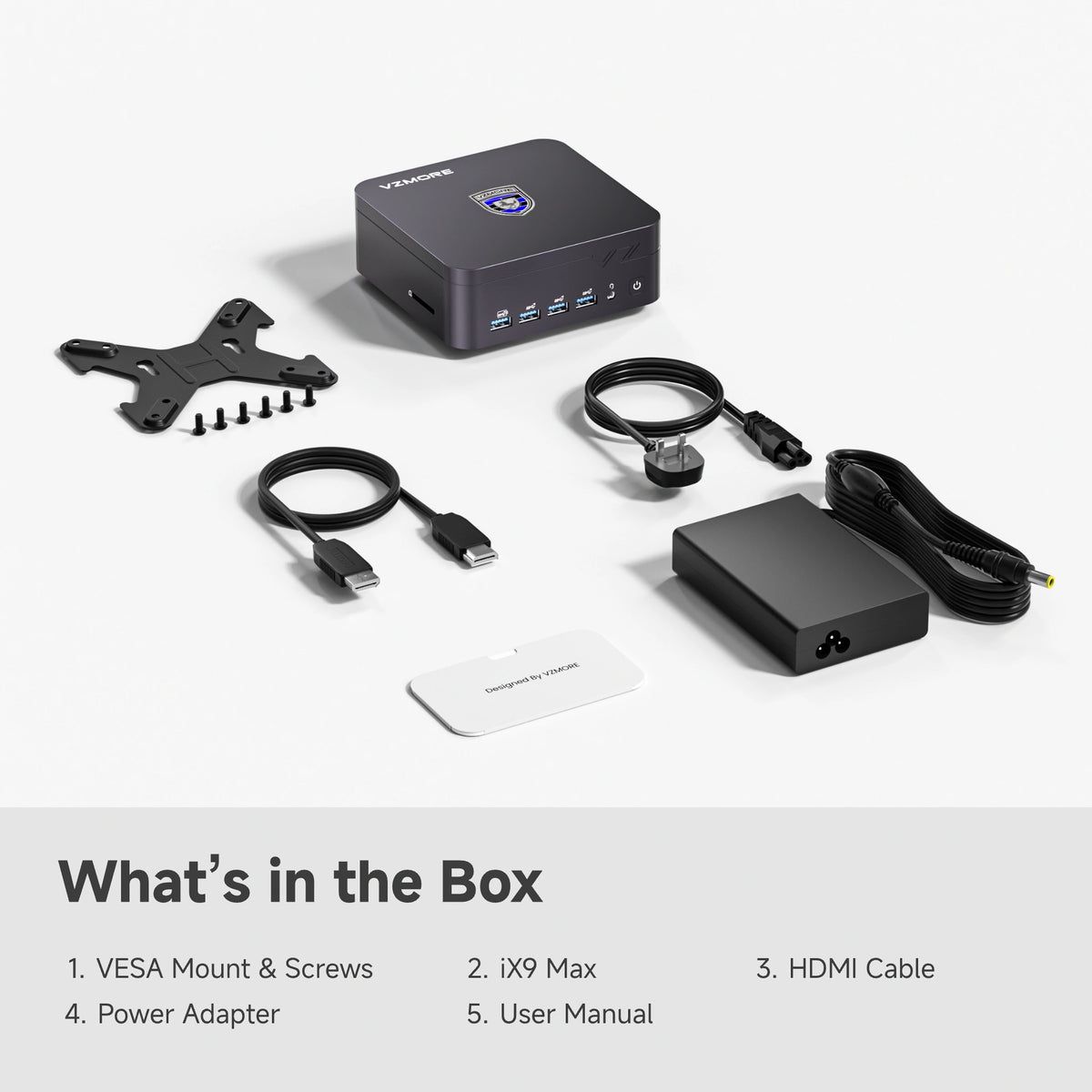
The cooling system uses a vapour chamber with a fan. Three power modes of 20W, 25W and 28W allow you to adjust operation for quieter use, everyday tasks or higher performance. A VESA mounting bracket and 120W power adapter are also included.
Business computing solutions
Explore the VZMORE mini PC range and compare compact systems for office work, home working, local applications and remote desktop access.
Frequently Asked Questions
What Is the Difference Between a Thin Client and a Mini PC?
A thin client mainly uses applications and data processed on a server or Cloud PC. A mini PC has its own full operating system and hardware resources. It can work locally and connect to a virtual desktop when necessary.
Is a Mini PC Suitable for Office Work?
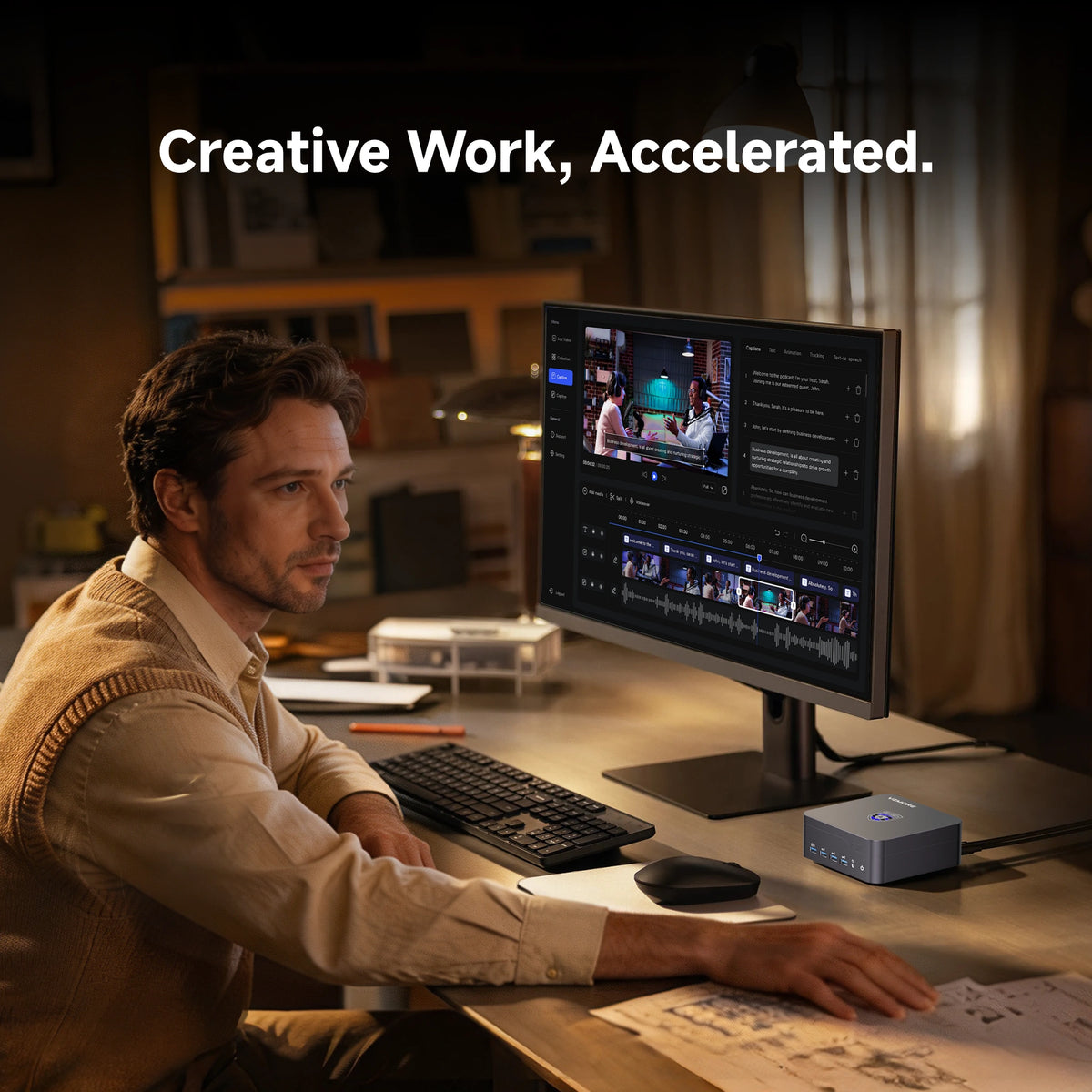
Yes. A mini PC can handle Microsoft 365, web browsing, video conferencing, business software, multiple monitors and remote access. It takes up very little space and can be mounted behind a monitor using a VESA bracket. Unlike a dedicated thin client, it can also run local programmes and access locally stored files when the remote desktop is unavailable.
How Much RAM Does an Office Mini PC Need?
For email, web browsing, Microsoft 365 and video conferencing, 16GB is sufficient for many office environments. For heavier multitasking, complex spreadsheets, development work or local AI tools, 32GB provides more headroom. The right choice should depend on the programmes you use every day.
Can You Upgrade the RAM and SSD in the VZMORE iX5 Max?
The iX5 Max uses integrated LPDDR5 memory, which cannot be upgraded after purchase. The platform supports configurations of up to 32GB. Storage is expandable, however, with one M.2 2280 slot supporting drives of up to 4TB and a second M.2 2242 slot supporting drives of up to 1TB.
How Many Monitors Can You Connect to a Mini PC?
The number depends on the graphics hardware and available ports. The VZMORE iX5 Max has two HDMI 2.0 outputs and two USB4 ports, supporting up to four compatible monitors depending on resolution and configuration. With a thin client, you also need to check the limitations of the virtual desktop platform.
Does a Mini PC Use More Power Than a Thin Client?
A traditional thin client often uses less power at an individual workstation because the main workload is processed on a server. However, a full comparison should also include the energy consumption of the remote infrastructure.
The iX5 Max offers three power modes of 20W, 25W and 28W, allowing you to balance energy consumption, noise and performance.
Do You Need Windows 11 Pro to Use a Mini PC as a Thin Client?
Not always. Windows 11 Home can connect as a client to another computer or virtual desktop. However, to receive incoming connections through Microsoft's Remote Desktop feature, you need a compatible edition, such as Windows 11 Pro.
The iX5 Max comes with Windows 11 Pro pre-installed.
Conclusion
A thin client is well suited to organisations that already use virtual desktops and want to manage multiple workstations through a centralised infrastructure. It offers management advantages, but depends on the availability of the server or cloud service and requires careful peripheral configuration.
A mini PC offers greater independence for professional practices, offices and small businesses that use locally installed applications. At the same time, it can connect to cloud services and remote desktops, making it a more flexible option for environments where local and centralised computing need to work together.

VZMORE is a leading manufacturer of AI Mini PCs. Our systems combine whisper-quiet VC cooling, high performance, and intelligent AI processing power—tailored for demanding applications in home offices, creative workflows, and edge computing. Enjoy free shipping on all orders.
Recommended Product





Related Articles

Subscribe to Newsletter
Get the latest news, product updates, and exclusive offers delivered straight to your inbox.